The Complete Guide to Formatting a PC, Drive or USB Stick (and the Side Effects Nobody Tells You)
Whole PC, extra HDD/SSD or USB stick: each has a different side effect. Understand the 3 scenarios, the command that causes the most accidents, and when a quick format isn’t enough.
Straight to the point about formatting a PC, an extra drive or a USB stick:
- “Formatting” means different things depending on the target: whole PC, extra drive or USB/external disk.
- Formatting an extra drive or USB stick never affects the other drives in the PC.
- The biggest real risk is selecting the wrong disk, especially with diskpart.
- A quick format doesn’t really erase data — to sell or donate, use a full format or Secure Erase.
- Formatting doesn’t erase your Windows licence, which is tied to your Microsoft account or hardware.
- Introduction
- What Does Formatting Really Mean?
- Answer These Three Questions First
- The 3 Scenarios (and Why They’re Different)
- Scenario 1: Formatting the Whole PC
- Scenario 2: Formatting an Extra HDD or SSD
- Scenario 3: Formatting a USB Stick or External Drive
- The Command That Can Erase the Wrong Disk
- Quick vs. Full Format: the Real Difference
- SSD/NVMe: Is There Something Better Than Formatting?
- Formatting Myths You Need to Stop Believing
- Checklist Before Formatting Anything
- Common Mistakes
- Frequently Asked Questions
💽 Formatting Isn’t One Thing — It’s at Least Three
You open the Command Prompt as administrator and, before typing any formatting command, you pause for a second. Because “formatting the PC” isn’t a single thing — it’s at least three completely different things, each with its own side effect, and most tutorials treat them as if they were all the same.
In this guide you’ll understand exactly what happens in the three most common scenarios — formatting the whole PC, formatting an extra HDD or SSD inside the computer, and formatting a USB stick or external drive — what each one really erases, the command that causes the most accidents, and when it’s better not to format at all.
🤔 What Does Formatting Really Mean?
Technically, formatting prepares a storage device with a new file system structure — rebuilding the “index” that tells Windows where each file is. It can happen at very different depths:
- Quick format: only rebuilds that index, without touching the data actually written on the disk. Fast, but the old data stays physically there until overwritten — recoverable with recovery tools.
- Full format: does the same, and also scans the whole disk for bad sectors; on modern Windows it also writes zeros over the volume. Much slower, much more thorough.
- Reset this PC: not a low-level format — it reinstalls Windows over the existing partition, keeping or removing your personal files depending on your choice.
- Secure Erase: specific to SSDs/NVMe, done by the drive’s own controller — more complete and faster than a traditional full format.
So when someone asks “have you formatted it?”, the honest answer is often “it depends what you mean by formatting” — and that distinction prevents most accidents.
✅ Answer These Three Questions First
- What exactly do you want to format? The disk where Windows is installed, a second drive that only stores files, or a USB stick/external drive? Each answer leads to a different scenario below.
- Why do you want to format? A slow PC (formatting isn’t always the fix), selling or donating (a quick format isn’t enough), persistent malware, or simply starting fresh. The right reason avoids unnecessary work.
- Have you backed up what matters? This should always come first — and it’s the one people forget until it’s too late.
🔀 The 3 Scenarios (and Why They’re Different)
| Scenario | What’s erased | What stays intact | Main risk |
|---|---|---|---|
| Whole PC (system disk) | Windows, installed programs and personal files (if you choose “Remove everything”) | Other separate physical drives | Losing files that weren’t saved elsewhere |
| Extra HDD/SSD (not the system one) | Only the content of that specific disk | Windows and the system disk keep working | Selecting the wrong disk |
| USB stick / external drive | Only the content of that removable device | Everything inside the PC | Forgetting to copy what you needed from it |
🖥️ Scenario 1: Formatting the Whole PC
There are two very different paths, and most of the confusion comes from mixing them up:
Path 1 — Reset this PC. In Settings → System → Recovery → Reset this PC, Windows 11 offers two combined choices: Keep my files (removes programs and settings but keeps personal files in the standard folders) or Remove everything; and then Cloud download (a fresh copy of Windows from Microsoft’s servers, needs internet) or Local reinstall (faster, but reuses files already on the PC — which may be the problem you’re trying to escape). Your Windows activation stays tied to your Microsoft account or hardware, with nothing to reactivate.
Path 2 — Clean install from a bootable USB stick. More radical and more thorough. You create installation media, boot from it, choose Custom install, and see the partitions of every disk connected to the PC. That’s exactly where the biggest risk lives: with more than one physical disk, you must identify the Windows disk correctly (usually by size) before deleting anything. When in doubt, physically disconnect other internal drives first. To create the media, see the official Windows 11 bootable USB guide, and for the full installation, how to format and install Windows safely.
💾 Scenario 2: Formatting an Extra HDD or SSD
When the disk isn’t where Windows is installed — say, a second drive for files, games or backups — the process is calmer, because Windows keeps running the whole time. Right-click Start → Disk Management (or run diskmgmt.msc), right-click the drive and choose Format.
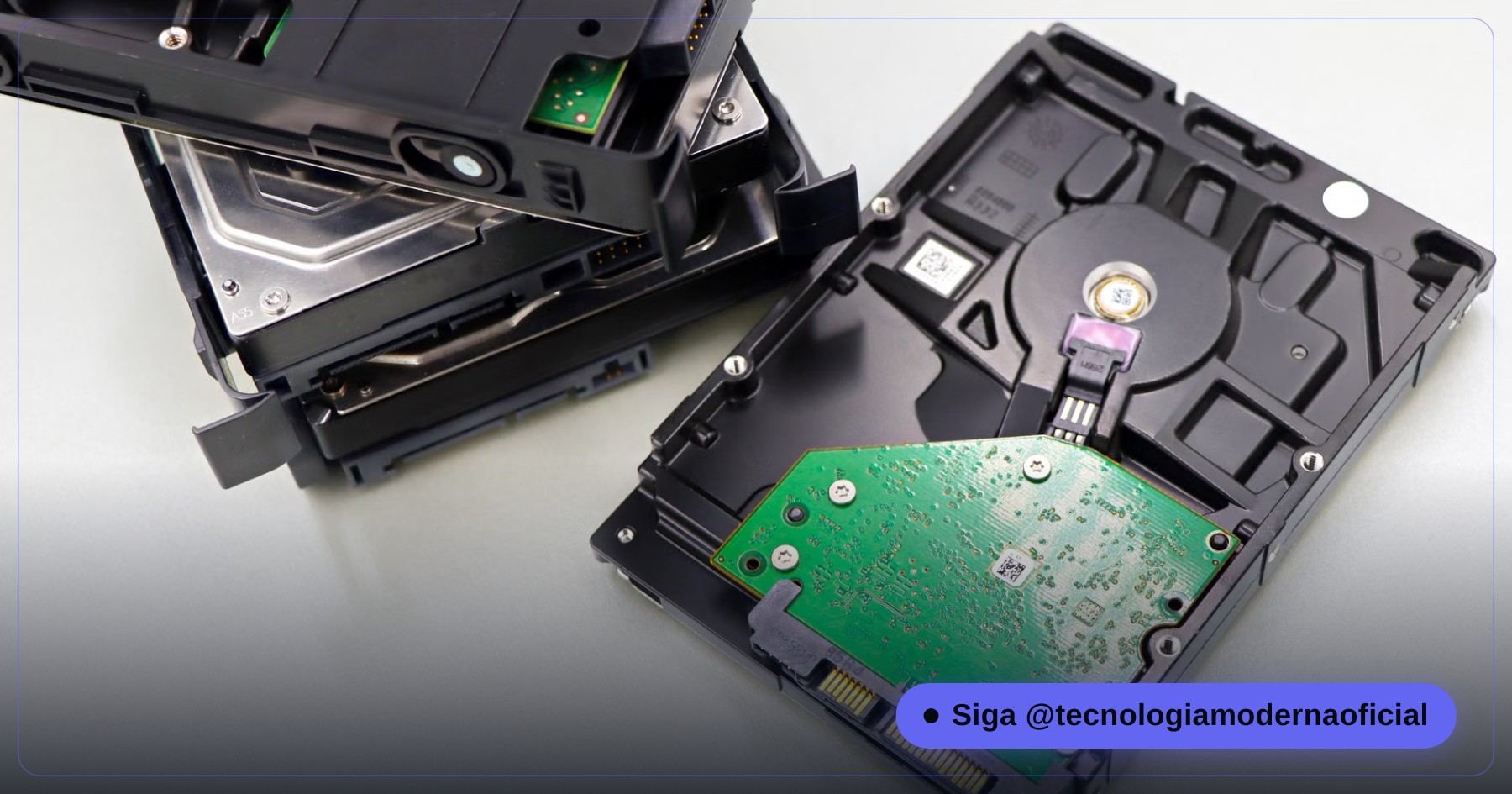
There you’ll choose between Quick Format (ticked by default) and a full format (untick it). The real risk isn’t technical, it’s human: mixing up which drive is which, especially with several disks of similar size. Before confirming, check the drive letter and, if in doubt, open File Explorer side by side to confirm the contents of that disk. For NVMe specifics, see how to format an NVMe SSD step by step.
🔌 Scenario 3: Formatting a USB Stick or External Drive
Same path as before (Disk Management, or right-click the drive in File Explorer → Format), just much faster. The important decision here is the file system:
| File system | Pros | Cons |
|---|---|---|
| FAT32 | Universal compatibility — TVs, car stereos, consoles, cameras | Maximum 4 GB per file |
| exFAT | No practical file size limit, native on Windows and modern macOS, good Linux support | Very old devices may not read it |
| NTFS | Windows’ native system with full permissions | Writing on macOS needs extra software |
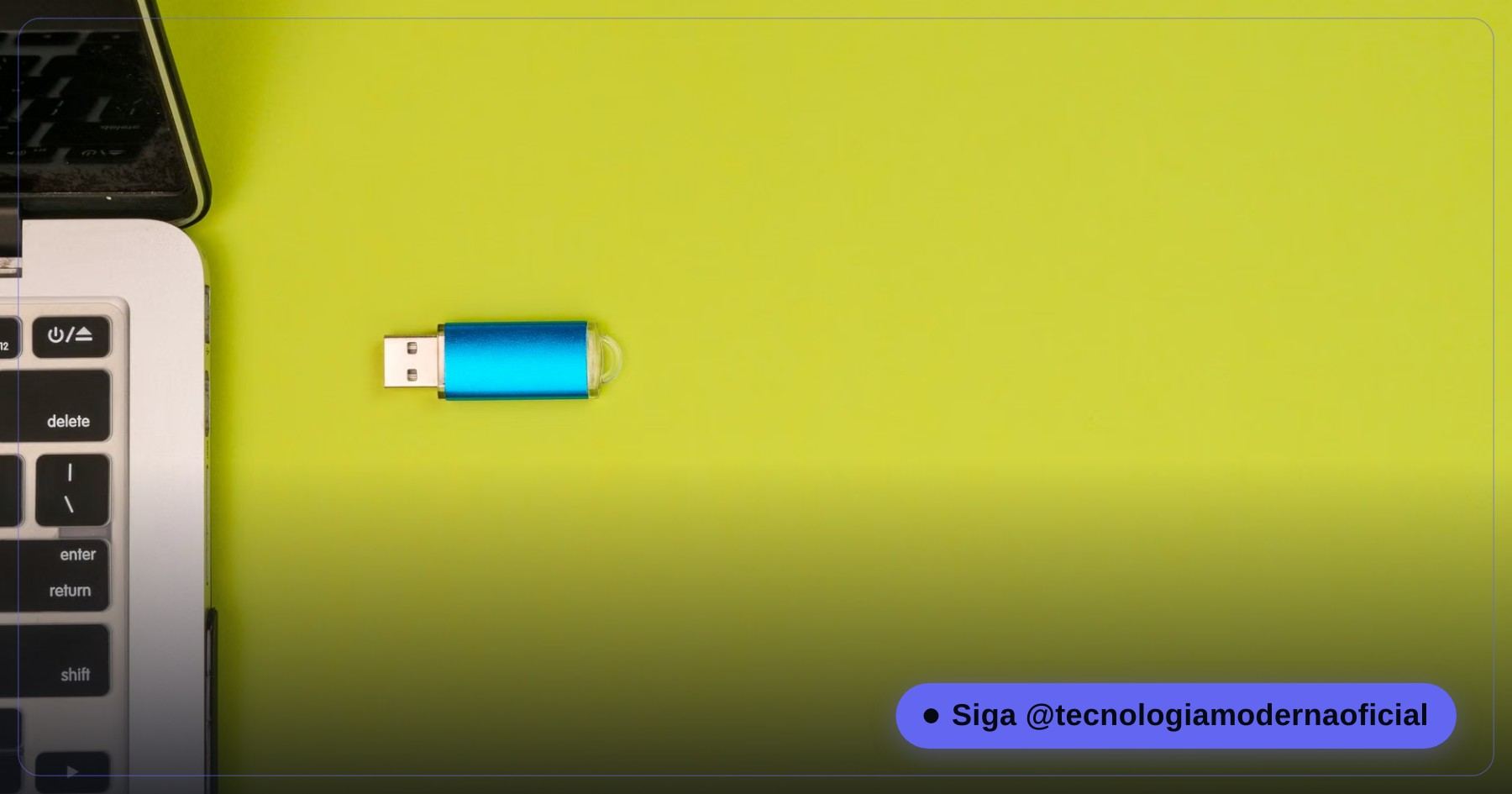
Formatting a USB stick or external drive doesn’t affect the PC’s internal disks at all. The only real care is making sure you’ve copied everything you needed from it. Stick refusing to format because it’s write-protected? See how to fix a write-protected USB stick.
⚠️ The Command That Can Erase the Wrong Disk
diskpart is a built-in Windows command-line tool — powerful and direct, which is exactly what makes it risky for anyone who doesn’t check every step. The clean command removes a disk’s partition structure (fast); clean all goes further, writing zeros over every sector (much slower, leaving nothing recoverable).
The problem isn’t the commands themselves — it’s that diskpart lists disks only by number (Disk 0, Disk 1, Disk 2…), without showing which drive letter matches which. People still select the wrong disk by mistake and run clean on a drive that had nothing to do with what they wanted to format.
list disk
select disk N
detail disk⚡ Quick vs. Full Format: the Real Difference
| Quick format | Full format | |
|---|---|---|
| Time | Seconds | Minutes to hours |
| Checks for bad sectors | No | Yes |
| Data recoverable afterwards? | Yes, with recovery tools | Much harder |
| Best for | Continued personal use of the same disk | Selling, donating or discarding an HDD |
A quick format only rewrites the file system index — old data stays physically on the disk until overwritten. That’s why quick-formatted drives can still be read by recovery tools, and why it’s the wrong choice before handing a drive to someone else.
🧬 SSD/NVMe: Is There Something Better Than Formatting?
For SSDs and NVMe drives there’s a more complete (and usually faster) alternative: Secure Erase, available through the manufacturer’s own software (Samsung Magician, for example) or specialised tools. It resets every NAND cell at the controller level — something a traditional overwrite can’t always reach, because SSDs keep reserved cells for wear levelling.
In practice: for continued personal use, a quick format is usually enough. To sell, donate or discard an SSD with privacy guaranteed, Secure Erase is the right choice — see how to wipe an SSD or HDD securely before selling.
🚫 Formatting Myths You Need to Stop Believing
- “Formatting removes any virus for sure.” Only when combined with a full reinstall of the operating system — a simple reformat may not remove malware hiding elsewhere (boot area, another partition or another disk).
- “Formatting a USB stick can affect the internal disks.” It can’t — the only way is selecting the wrong disk by mistake, which is human error, not a formatting effect.
- “Formatting erases my Windows licence.” It doesn’t — activation is tied to your Microsoft account or a hardware ID. See how to find your Windows key and digital licence.
- “A quick format is enough to sell my PC safely.” It isn’t — the data remains recoverable with fairly simple tools.
📋 Checklist Before Formatting Anything
- Identify exactly which drive you’ll format (letter, size, known content).
- Back up everything important — cloud, external drive or a separate USB stick.
- Confirm the real reason — sometimes there’s a simpler fix than formatting.
- If you use diskpart, run list disk and check size/model before selecting any disk.
- If you’re selling or donating, use a full format (HDD) or Secure Erase (SSD) — never just quick.
- For the system disk, choose between Reset this PC (simpler) and a clean install (more thorough).
- Note down licences and keys of programs that don’t come from the Microsoft Store.
🐛 Common Mistakes
| Mistake | Why it hurts |
|---|---|
| Formatting without knowing which disk is which | The most expensive and most avoidable mistake, especially with diskpart |
| Thinking a quick format is safe before selling | The data remains recoverable |
| Skipping the backup, trusting there’ll be time later | In practice, there almost never is |
| Using FAT32 for large files | Hitting the 4 GB per-file limit without understanding why |
| Leaving extra disks connected during a clean install | Formatting the wrong disk on the custom install screen |
FAQ
Does formatting the PC erase my programs and files?
It depends on the option. “Keep my files” in Reset this PC keeps personal files but removes programs. “Remove everything” and a clean install erase everything on the system disk, personal files included.
Does formatting a USB stick affect my PC’s internal disks?
No. Formatting a specific device only erases that device — the only way to affect another disk is selecting the wrong one by mistake.
Does formatting erase my Windows licence?
No. Modern Windows activation is tied to your Microsoft account or a hardware identifier, not to what’s written on the disk.
What’s the difference between quick and full format?
A quick format only rebuilds the file system index, leaving old data recoverable. A full format also scans for bad sectors and overwrites the volume — slower, and the right choice before selling or donating an HDD.
Why is diskpart considered risky?
Because it lists disks only by number, without showing which drive letter matches which — it’s easy to select the wrong disk and run clean on it by mistake.
Which file system should I choose for a USB stick?
exFAT is usually the best default today — it works on Windows, macOS and Linux with no practical file size limit. FAT32 is more universal but limits files to 4 GB; NTFS is ideal only if the stick stays in the Windows world.
🎮 How much did you learn?
Once you pick an answer it locks in — reload the page to try again.
1. Does formatting a USB stick affect the PC’s internal disks?
2. What does a quick format really do?
3. Why is diskpart considered risky?
4. Is a quick format enough to sell a laptop safely?
5. What’s the most complete alternative to traditional formatting on an SSD/NVMe?
Esse conteúdo ajudou você?
Compartilha com alguém que também vai curtir — é rapidinho e ajuda muito o nosso trabalho a chegar em mais gente.
Conhecimento só tem valor quando compartilhado.
Manter essa estrutura de laboratórios funcionando e produzir conteúdos de engenharia de forma totalmente gratuita e acessível exige tempo e dedicação diária à bancada. Esse guia salvou os seus arquivos? Você pode contribuir diretamente para manter o nosso trabalho independente forte. Apoie doando qualquer valor!
Quer apoiar a nossa bancada independente?
[email protected]