Selling Your PC or Laptop? How to Truly Wipe an SSD or Hard Drive (Formatting Isn’t Enough)
A quick format doesn’t erase your files: with a free program, anyone can recover photos, passwords and documents. Here’s the right way for SSDs, NVMe drives and hard drives — with Windows itself, with the manufacturer’s tool and with the encryption trick.
The safe path, in 5 lines:
- A quick format does NOT erase anything: it only hides the files; free programs recover almost everything.
- SSD and NVMe: use Secure Erase / Sanitize from the manufacturer’s tool or the BIOS.
- Mechanical hard drive:
diskpartwithclean allwrites zeros across the whole disk. - Easiest way if you’re selling the whole PC: Reset this PC → Remove everything → Clean data.
- Extra trick: encrypting with BitLocker before wiping makes any leftovers unreadable.
- Introduction
- SSDs and Hard Drives Are Wiped Differently
- Checklist Before Wiping Anything
- Selling the Whole PC? Use Windows’ “Clean Data” Option
- Secure Erase with the Manufacturer’s Tool
- Secure Erase Directly in the BIOS/UEFI
- Hard Drive: Writing Zeros with diskpart
- The Encrypt-Before-Wiping Trick
- Methods That Don’t Really Protect You
- How to Confirm the Drive Is Really Clean
- USB Sticks, Memory Cards and External Drives
- What If the Drive Won’t Turn On Anymore?
- What About the Phone You’re Selling?
- Which Method to Use in Each Case
- Frequently Asked Questions
🕵️ Why “Formatting” Doesn’t Erase Your Files
When you delete a file or run a quick format, Windows doesn’t destroy the data: it only marks that space as “free to use”. The files are still physically there until something new is written over them. That’s exactly why recovery programs work — and why a “formatted” drive sold online can hand your whole life to a stranger.
What might be on an ordinary PC’s drive: photos and videos, personal documents, passwords saved in the browser, session cookies (which sometimes keep accounts logged in), chat backups, work spreadsheets and files, invoices with your address and ID numbers.

⚖️ SSDs and Hard Drives Are Wiped Differently
| Mechanical hard drive | SSD / NVMe | |
|---|---|---|
| How it writes | To fixed sectors on magnetic platters | To memory chips; the controller spreads data around to wear evenly |
| Does writing zeros over it work? | Yes, one pass is enough on modern drives | Not guaranteed: there are reserved areas Windows can’t see |
| Recommended method | diskpart clean all or a full format | Secure Erase / Sanitize (the SSD’s own internal command) |
| Time | Hours (depends on size) | Seconds to a few minutes |
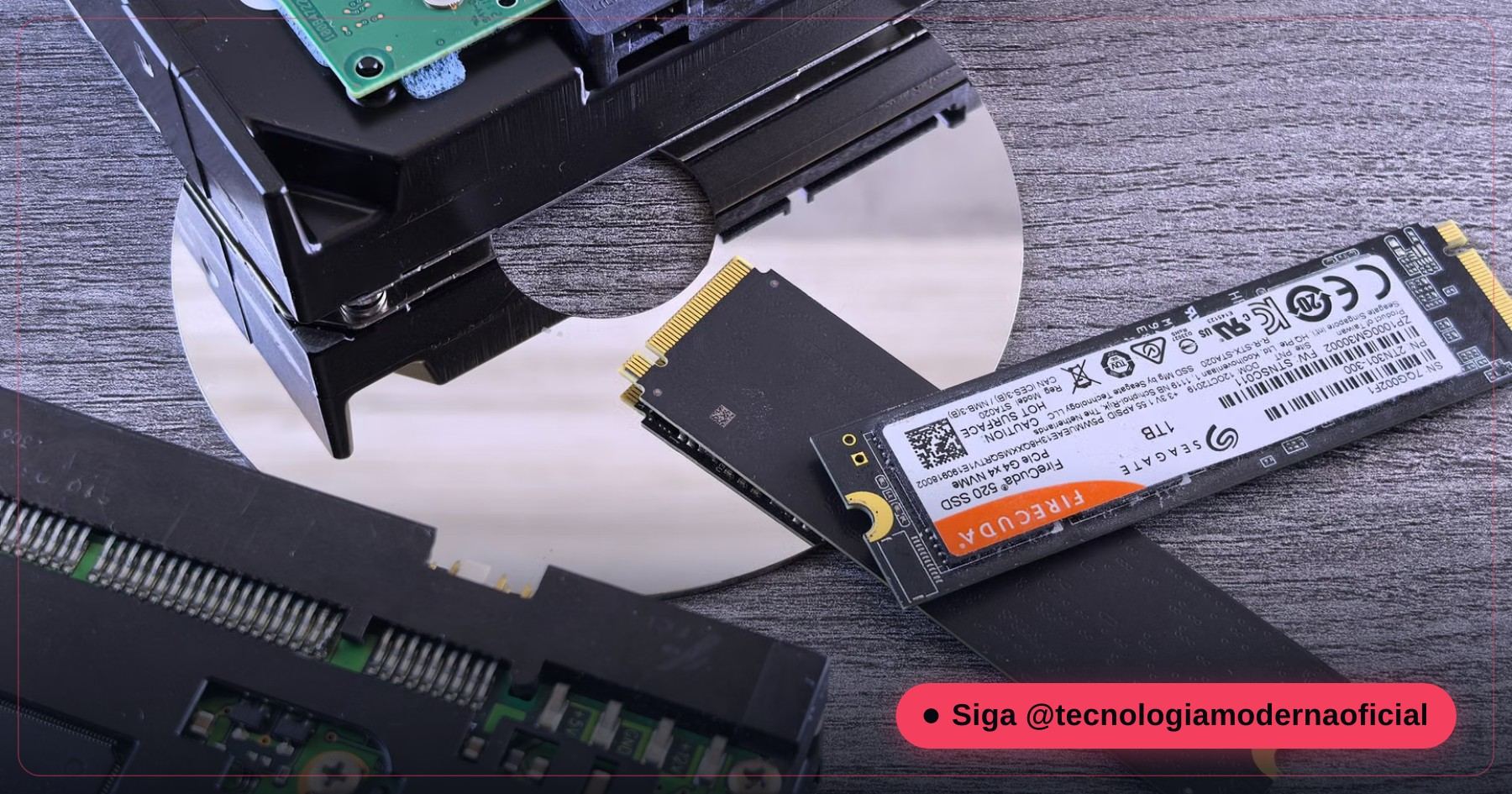
The difference matters: an SSD has more physical capacity than it shows (so-called over-provisioning) and the controller remaps blocks all the time. So only the SSD itself can guarantee that every cell was cleared — and it does that with the Secure Erase or Sanitize command. Not sure what’s inside your PC? See SSD vs HDD: the difference in practice.
📋 Checklist Before Wiping Anything
- Back up everything that matters — after a secure erase there’s no way back.
- Sign out of your accounts: Microsoft, Google, iCloud, Steam, Adobe, and deauthorize the PC in services with device limits.
- Note your Windows license if it’s transferable (factory laptop licenses live on the motherboard and come back on their own).
- Only turn off BitLocker if you’ll reinstall Windows and keep using the drive — for a sale, encryption actually helps (see the trick below).
- Confirm which drive is which if the PC has more than one.
To take your files and programs to the new computer without forgetting anything, follow how to move everything to a new PC.
🪟 Selling the Whole PC? Use Windows’ “Clean Data” Option
If you’re selling the computer with the drive inside and want to hand it over with Windows installed, Windows has a cleaning option made for this:
- Open Settings → System → Recovery.
- Under Reset this PC, click Reset PC.
- Choose Remove everything.
- Choose Local reinstall (or Cloud download).
- Under Additional settings, click Change settings and turn on Clean data? → Yes.
- Confirm and let the PC work — it can take a few hours.
🔐 Secure Erase with the Manufacturer’s Tool
Every major manufacturer offers a free program that talks directly to the SSD and sends the secure-erase command. It’s the most reliable method for SSDs:
| SSD brand | Official program | Where the option is |
|---|---|---|
| Samsung | Samsung Magician | Secure Erase (creates a boot USB when the SSD is the system drive) |
| Western Digital / SanDisk | WD Dashboard | Tools → Secure erase / Sanitize |
| Crucial (Micron) | Crucial Storage Executive | Sanitize Drive / PSID Revert |
| Kingston | Kingston SSD Manager | Secure Erase |
| Intel / Solidigm | Solidigm Storage Tool | Secure Erase |
Find your SSD’s brand and model without opening the PC:
Get-PhysicalDisk | Select-Object FriendlyName, MediaType, BusType, Size🧬 Secure Erase Directly in the BIOS/UEFI
Many recent laptops and motherboards include secure erase in the BIOS itself, with no program needed. The name changes by brand:
| Manufacturer | What it’s usually called |
|---|---|
| Dell | “Data Wipe” under Maintenance (runs on the next boot) |
| Lenovo (ThinkPad) | “Secure Wipe” or “Secure Erase” under Security |
| HP | “Secure Erase” under Advanced or HP Secure Erase |
| ASUS / MSI / Gigabyte (motherboards) | “Secure Erase” or “SSD Secure Erase” under Tools/Advanced |
To enter the BIOS, restart and press F2, Del or F10 right at the start (it varies by brand). On an SSD it usually takes only a few seconds — because it doesn’t write zeros, it resets the cells internally.
💿 Hard Drive: Writing Zeros with diskpart
For hard drives (and any drive that isn’t the system drive), Windows’ diskpart has the clean all command, which writes zero to every sector. Open Terminal as administrator:
diskpart
list disk
select disk 1
detail disk
clean all
exit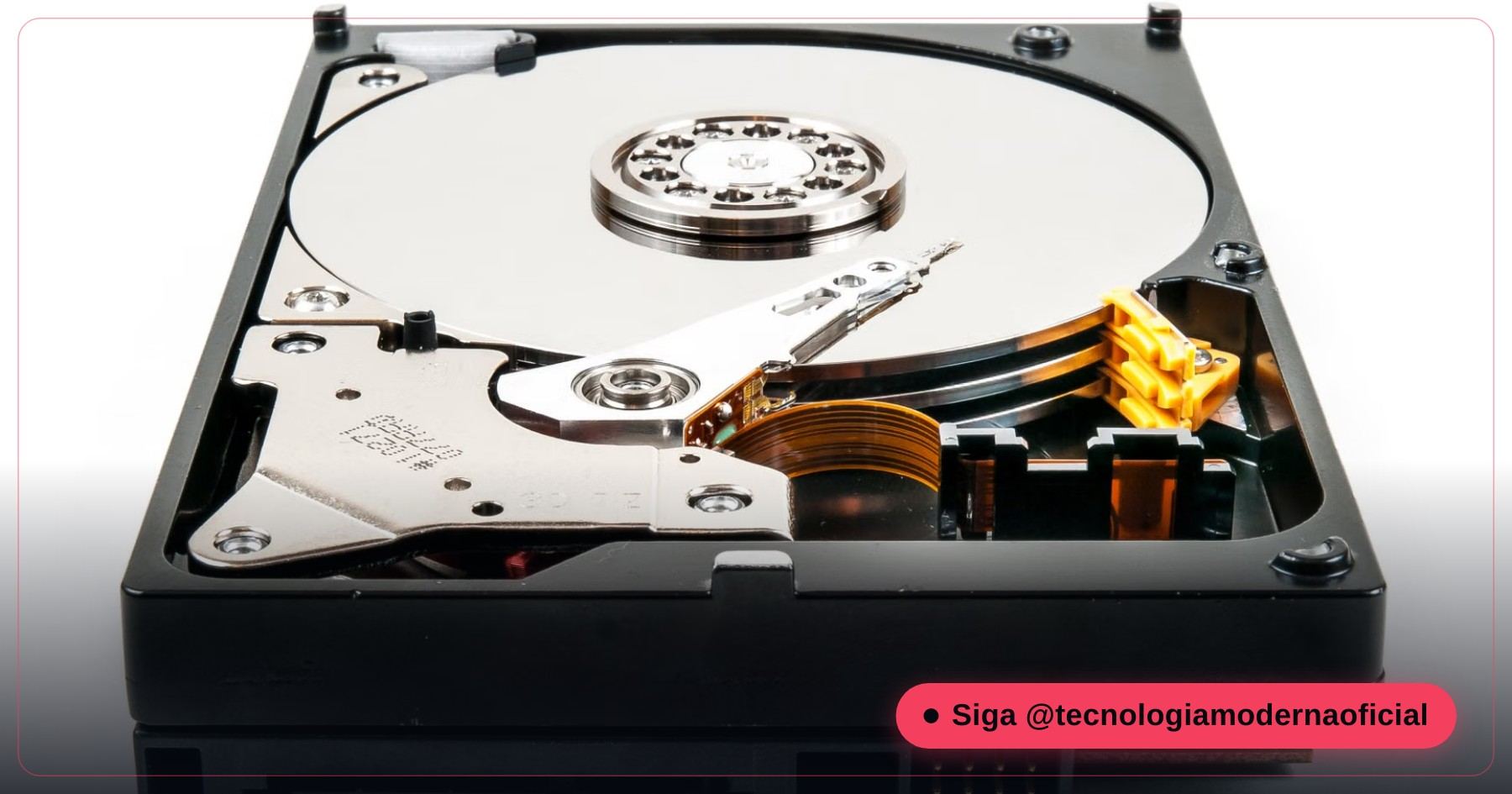
select disk: the number must be the drive you want to wipe. Use list disk and detail disk to check the size and model before clean all. Disk 0 is usually the Windows drive.On a 1 TB hard drive, clean all can take 2 to 4 hours. Afterwards, open Disk Management to create a new partition if the drive will be used again. Alternative with a full format, which also writes zeros:
format E: /fs:NTFS /p:1🔒 The Encrypt-Before-Wiping Trick
A technique companies use is cryptographic erase: first you encrypt the whole drive, then you wipe it. That way, any piece left in some hidden area of the SSD is scrambled and useless without the key — which is destroyed along with it.
- Turn on BitLocker (Windows Pro) or Device Encryption (compatible Windows Home) and choose to encrypt the entire drive.
- Wait for encryption to finish (check with the command below).
- Run Method 1, 2 or 3.
manage-bde -status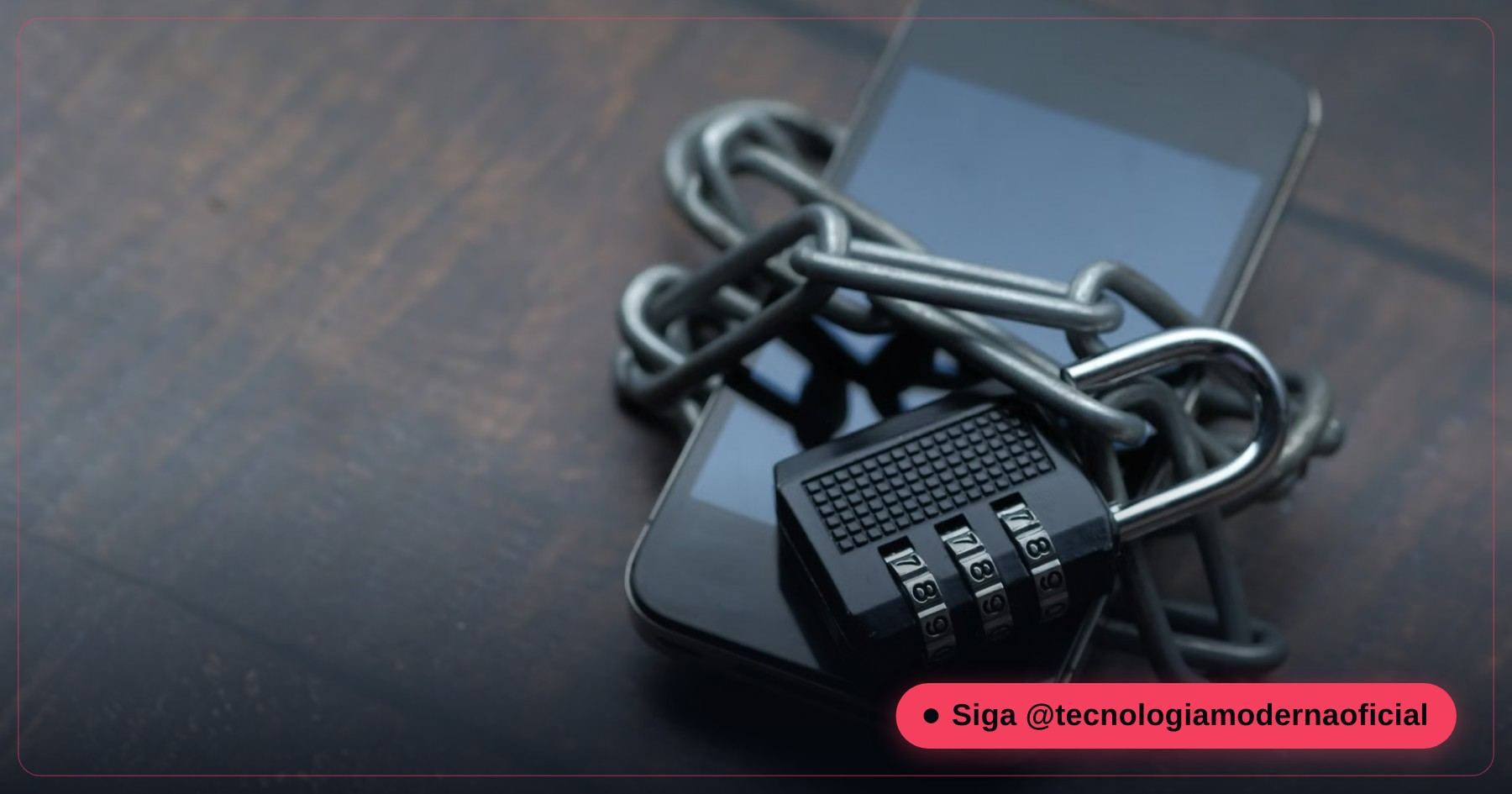
If you keep sensitive files day to day, also check out an encrypted vault with VeraCrypt, and learn where your BitLocker recovery key is stored.
🚫 Methods That Don’t Really Protect You
| Method | Why it doesn’t work |
|---|---|
| Deleting files and emptying the Recycle Bin | The data stays on the drive until overwritten |
| Quick format | Only rebuilds the index; recovery is easy |
| cipher /w on an SSD | Clears free space on a hard drive, but on an SSD it can’t reach remapped areas |
| “File shredder” programs on an SSD | Same problem: the controller may have kept copies elsewhere |
| Drilling a hole in the drive “any old way” | On an SSD, any chips left intact can still be read |
Fun fact: that’s precisely why recovering deleted files works so well — I show the other side of the coin in how to recover deleted files on Windows.
🔎 How to Confirm the Drive Is Really Clean
Want to be sure? Run the test a curious buyer would: use a recovery program on the wiped drive. PhotoRec (free, from the same package as TestDisk) scans the drive byte by byte looking for photos, documents and videos. If the wipe worked, it finishes the scan without finding anything usable.
The PhotoRec step by step is in the guide hard drive or SSD turned RAW; here you use the same program in reverse, as proof that nothing was left.
💾 USB Sticks, Memory Cards and External Drives
| Device | How to wipe |
|---|---|
| External hard drive | Same method as an internal one: diskpart clean all |
| External SSD | The manufacturer’s tool (many work over USB); if there isn’t one, encrypt with BitLocker To Go and then format |
| USB stick and SD card | Encrypt with BitLocker To Go and then do a full format; if it held something very sensitive, destroy it |
USB sticks and cards use memory similar to an SSD’s, so the same care applies — and they’re often forgotten in a drawer with years of photos inside.
🔨 What If the Drive Won’t Turn On Anymore?
A dead drive won’t accept an erase command — but the data may still be there. If it held sensitive information and won’t be used again:
- Hard drive: physically destroying the platters (bending, scratching deeply or using a certified disposal service) does the job.
- SSD: you must destroy every memory chip, not just the board. Certified disposal services shred them.
- Disposal: take it to an e-waste collection point — never the regular trash.
📱 What About the Phone You’re Selling?
Phones are simpler, because Android and iPhone are encrypted out of the box: a factory reset deletes the key and leaves the data unreadable. But first remove your Google account or Apple ID — otherwise the buyer gets stuck on the anti-theft lock:
| System | Path |
|---|---|
| Android | Settings → Accounts → remove the Google account; then System → Reset options → Erase all data (factory reset) |
| iPhone | Settings → your name → Sign Out; then Settings → General → Transfer or Reset iPhone → Erase All Content and Settings |
📌 Which Method to Use in Each Case
| Situation | Method |
|---|---|
| Selling the whole PC with Windows installed | Method 1 (Clean data), preferably with the drive encrypted |
| Selling or donating just the SSD/NVMe | Method 2 (manufacturer’s tool) or Method 3 (BIOS) |
| Selling or donating a hard drive | Method 4 (diskpart clean all) |
| A drive that won’t turn on | Physical destruction or certified disposal |
FAQ
Does formatting an SSD erase files for good?
A quick format doesn’t. It only rebuilds the index and the data can be recovered. On an SSD, use the manufacturer’s or the BIOS Secure Erase.
What is Secure Erase?
It’s the SSD’s own internal command that clears every memory cell, including reserved areas Windows can’t see. It takes seconds to a few minutes.
Can I use diskpart clean all on an SSD?
It works, but it isn’t guaranteed to reach reserved areas and it uses up drive life by writing the whole disk. For SSDs, prefer Secure Erase.
How many times do I need to write zeros on a hard drive?
On modern hard drives, one full pass is enough to prevent recovery by software.
Is Reset this PC with Clean data secure?
It’s a good option when selling a PC with Windows installed, especially if the drive is encrypted with BitLocker or Device Encryption.
Will I lose my Windows license?
On PCs and laptops that came with Windows from the factory, the license is stored on the motherboard and reactivates automatically after reinstalling.
Does Secure Erase damage the SSD?
No. It’s a function designed by the manufacturer and doesn’t meaningfully reduce the drive’s lifespan.
What if the drive is broken?
If it doesn’t accept commands, the solution is physical destruction or a certified disposal service. On an SSD, the memory chips must be destroyed.
🎮 How much did you learn?
Once you pick an answer it locks in — reload the page to try again.
1. Does a quick format really erase files?
2. What’s the most reliable way to wipe an SSD?
3. Which diskpart command writes zeros across the whole disk?
4. Where is Windows’ “Clean data” option?
5. What should you do before wiping the drive?
Esse conteúdo ajudou você?
Compartilha com alguém que também vai curtir — é rapidinho e ajuda muito o nosso trabalho a chegar em mais gente.
Conhecimento só tem valor quando compartilhado.
Manter essa estrutura de laboratórios funcionando e produzir conteúdos de engenharia de forma totalmente gratuita e acessível exige tempo e dedicação diária à bancada. Esse guia salvou os seus arquivos? Você pode contribuir diretamente para manter o nosso trabalho independente forte. Apoie doando qualquer valor!
Quer apoiar a nossa bancada independente?
[email protected]