The Hidden Warning From Your HDD or SSD: How to Know If Your PC Is About to Fail
Random stutters, a screen that freezes for seconds, Task Manager showing the disk stuck at 100%? Your drive may be signalling it’s dying — and a free tool used on repair benches worldwide reveals its exact health in two seconds.
Drives rarely die without warning — here’s how to read the signs:
- S.M.A.R.T. is a health record built into every drive, but Windows doesn’t show it by default.
- CrystalDiskInfo reads it in two seconds — free, from the Microsoft Store.
- Blue means good, yellow means back up now, red means emergency.
- HDDs and SSDs have different key attributes — wear level and data written matter most on SSDs.
- Blue but still freezing? Escalate to Victoria, which measures real sector latency.
- Introduction
- Download It From the Official Store
- Understanding the Health “Traffic Light”
- The Technical Secret: Current vs. Threshold
- Which Attributes Matter on HDDs and SSDs (They’re Not the Same!)
- CrystalDiskInfo vs. Victoria: When to Use Each
- On the Bench: Healthy Drive vs. Condemned Drive
- What to Do With Each Result
- Setting Up Automatic Alerts
- Common Errors and How to Fix Them
- Frequently Asked Questions
🚨 The Warning Your Drive Gives in Silence
The biggest mistake PC users make is waiting for the Blue Screen of Death to find out they’ve lost photos, documents and important files. Storage devices rarely die without warning — they send silent signals, often months before total failure, through a technology built into their firmware called S.M.A.R.T. (Self-Monitoring, Analysis and Reporting Technology).
The problem is that nobody looks at these signals, because they don’t appear anywhere in Windows’ normal interface. You need a specific tool to read this “medical record” — and the most used one on repair benches worldwide, because it’s light, free and straight to the point, is CrystalDiskInfo.
⬇️ Download It From the Official Store
Download CrystalDiskInfo directly from the Microsoft Store — it’s 100% free and safe, with no aggregator sites full of fake download buttons.
- Open the Microsoft Store and search for CrystalDiskInfo (publisher: Crystal Dew World).
- Click Get and wait for the installation.
- Open it from the Start menu — the report appears immediately, no configuration needed.
🚦 Understanding the Health “Traffic Light”
As soon as you open it, the program reads the drive’s internal sensors and shows an instant report using simple colours:
| Status | What it means | What to do |
|---|---|---|
| 🔵 Good (blue) | Correct temperature and no physical failures recorded | Carry on — but check again from time to time |
| 🟡 Caution (yellow) | Pending sectors or failing blocks were found | Back up your files now — the drive still works, but the clock is ticking |
| 🔴 Bad (red) | Error rates passed the limit; the drive could stop at the next boot | Copy the data immediately, not tomorrow |

🔬 The Technical Secret: Current vs. Threshold
If you want a proper technician-level audit, ignore the percentages and look at the internal table. Its logic works the opposite way from what seems intuitive:
- Current: the attribute’s “health bar”. It starts high (usually 100 or 200) and drops as the drive wears.
- Threshold: the red line defined by the manufacturer. If Current touches or drops below it, the critical alarm goes off.
- Raw values: the real count of how many times the event happened, usually shown in hexadecimal.
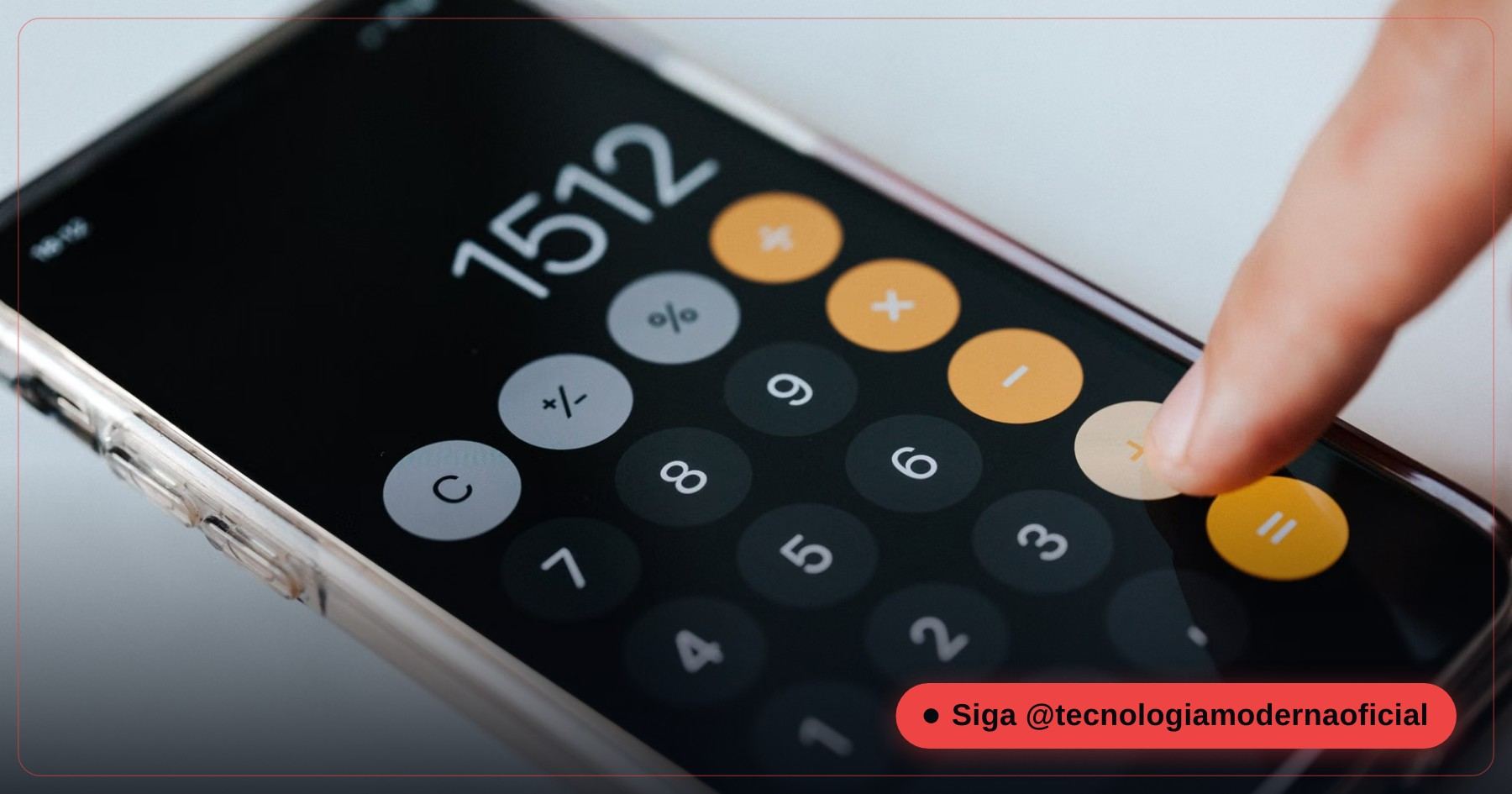
Pro tip: convert the hexadecimal raw value to decimal with the Windows Calculator to see the exact number of events:
- Open the Windows Calculator.
- Open the menu (☰) and choose Programmer.
- Click HEX and type the raw value (for example 1A).
- Read the DEC line to see the real number (1A = 26).
📋 Which Attributes Matter on HDDs and SSDs (They’re Not the Same!)
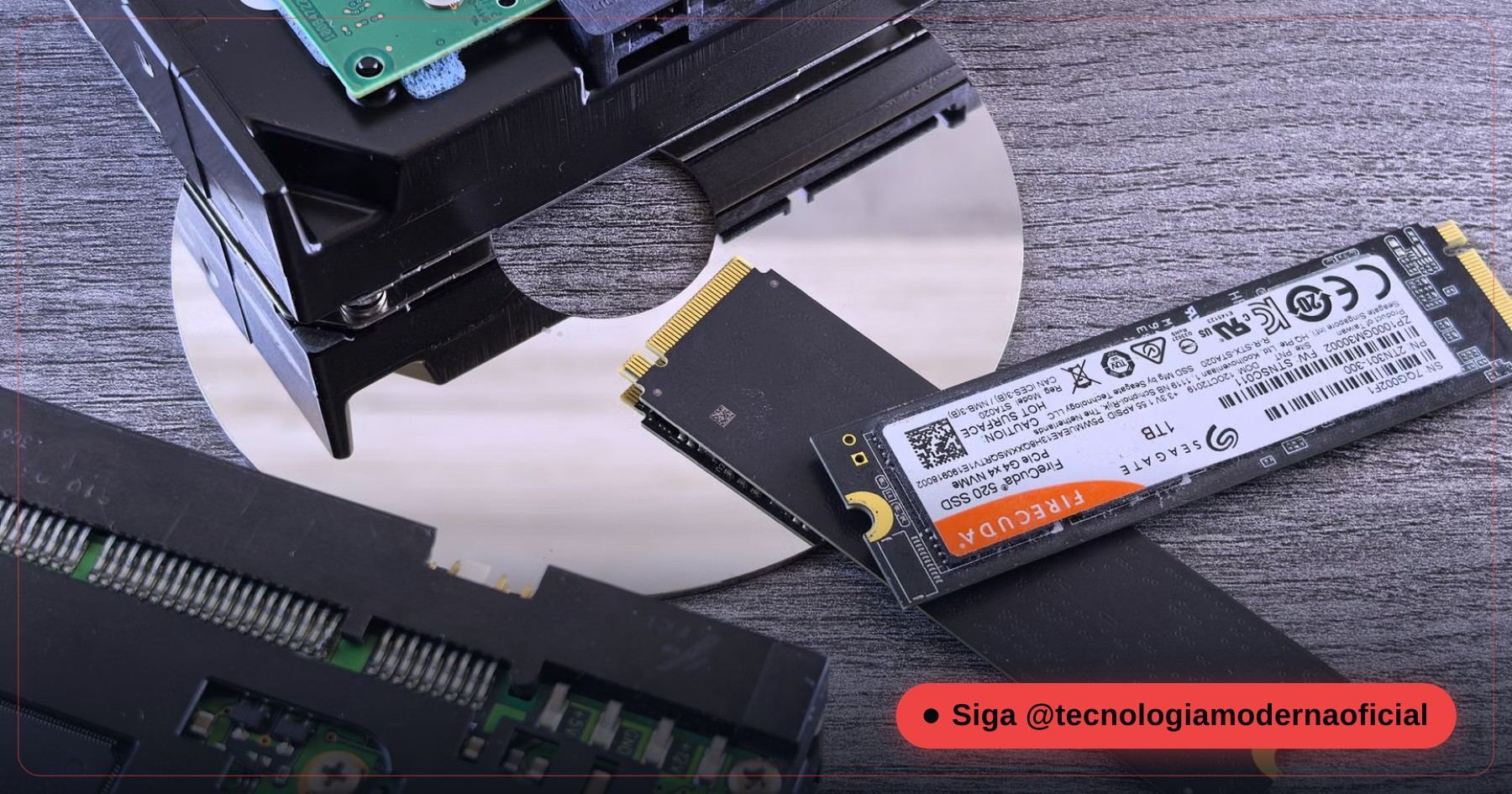
Mechanical hard drives and flash-based SSDs are physically different, so not every SMART attribute applies to both. Watching the wrong attribute makes you ignore a real warning or worry about something irrelevant:
| Attribute | Applies to | What it means |
|---|---|---|
| Reallocated Sectors Count | HDD and SSD | Bad sectors already replaced by spares. Any value above zero deserves attention. |
| Current Pending Sector | HDD and SSD | Suspicious sectors waiting for confirmation. An early sign of trouble. |
| Spin Retry Count | HDD only | Extra attempts to spin up the motor. Doesn’t exist on SSDs. |
| G-Sense Error Rate | HDD only | Physical shocks that affected reading. Irrelevant on SSDs, which have no moving parts. |
| Wear Leveling Count / Percentage Used | SSD only | How worn the flash cells are — the most important value to watch on an SSD. |
| Total Host Writes / Data Units Written | SSD only | Total data written over the drive’s life. Compare it with the TBW rating from the manufacturer. |
For a quick SSD check using only Windows commands, see the 2-minute test that shows whether your SSD is dying.
⚖️ CrystalDiskInfo vs. Victoria: When to Use Each
| Aspect | CrystalDiskInfo | Victoria HDD/SSD |
|---|---|---|
| What it measures | SMART attributes already calculated by the firmware | Real latency of each sector, measured live |
| Speed | Result in 2 seconds | Minutes to hours (full surface scan) |
| Detects a “struggling” sector not yet marked as bad? | No — it only sees what SMART has recorded | Yes — that’s its strong point |
| Recommended use | Routine check, first diagnosis | Deep investigation when physical slowness is suspected |
Suggested bench workflow: run CrystalDiskInfo first — it’s fast and filters most obvious cases. If it shows blue but the PC keeps freezing, escalate to Victoria HDD/SSD, which sees what SMART hasn’t noticed yet.
🔍 On the Bench: Healthy Drive vs. Condemned Drive
| Signal | Healthy drive | Condemned drive |
|---|---|---|
| Current values | Close to the maximum (100 or 200) | Several attributes brushing against the threshold |
| Reallocated / pending sectors | Zero | Dozens or thousands, and rising |
| G-Sense Error Rate (HDD) | Low and stable | Very high — a sign of knocks and vibration |
| Everyday behaviour | Smooth | Freezes, disk at 100%, files that won’t open |
The number that matters most is the trend: a counter that goes from 0 to 8 and then to 40 in a few weeks is a drive losing the fight, even if the colour is still yellow. Write down the values when you check, and compare them next month.
📝 What to Do With Each Result
- Blue, no symptoms: nothing urgent. Schedule a monthly check — it takes five seconds.
- Blue, but freezing: SMART may not have recorded anything yet. Use Victoria to measure real latency, and also check simpler causes such as a loose SATA cable.
- Yellow: stop and copy your most important files (documents, photos, work projects) to another drive or the cloud within hours — not days. Then set up a proper routine: Windows backup without installing anything.
- Red: treat it as an emergency. Stop non-essential tasks, copy what’s critical right away, and avoid switching the machine on and off repeatedly — every power cycle stresses a failing drive.
- After any emergency backup: don’t trust that drive as main storage again. Replace it as soon as possible, even if it “still works”.
🔔 Setting Up Automatic Alerts
A little-known feature of CrystalDiskInfo is continuous background monitoring, with a warning when the status changes — so you don’t depend on remembering to open it:
- In the Function menu, enable Resident and Startup so it starts with Windows and stays in the system tray.
- In Alert Features, enable the alert sound for status changes.
- If you look after several machines, configure Alert Mail to receive an email whenever a drive’s status changes.
Most drives that “die out of nowhere” actually warned — nobody was looking. Automatic monitoring turns a reactive problem into a preventive one.
🔧 Common Errors and How to Fix Them
| Problem | What to do |
|---|---|
| The drive shows no SMART data | Common with external drives on USB adapters that don’t pass SMART commands. Connect it directly via SATA if possible. |
| Yellow status, but the drive “seems” fine | Don’t ignore it — yellow is exactly the early warning before the problem becomes noticeable. Back up anyway. |
| Constantly high temperature | Check the case or laptop ventilation. Heat accelerates wear on both HDDs and SSDs. |
| SSD wear rising quickly | May indicate heavy writing by misconfigured cache/swap programs, or simply intense use over many years. |
| Drive already shows as RAW or asks to be formatted | Stop using it and see what to do when a drive turns RAW. |
FAQ
Does CrystalDiskInfo work on NVMe SSDs?
Yes. It reads SMART data from both SATA SSDs and NVMe drives, although the exact attributes vary by controller manufacturer.
How often should I check?
A monthly check is enough for home use. On critical work machines, set it to start with Windows and monitor continuously.
Does a blue status mean the drive will never fail?
No — it means no signs of physical failure have been recorded so far. Drives can fail without warning due to electrical or controller problems, so regular backups remain essential.
My drive is yellow. Is there still time to save the data?
In most cases, yes — yellow means caution, not total failure. Back up immediately and plan to replace the drive.
Is there an alternative to CrystalDiskInfo?
Yes — HD Tune is another known tool, more focused on speed benchmarks. For a quick health check, CrystalDiskInfo remains the most direct and widely used.
Does reading SMART data put any stress on the drive?
No. CrystalDiskInfo only reads information the drive already keeps — it doesn’t scan the surface or write anything, so it’s safe even on a failing drive.
🎮 How much did you learn?
Once you pick an answer it locks in — reload the page to try again.
1. What technology built into drives records their health?
2. What should you do when CrystalDiskInfo shows yellow?
3. In the internal table, when does the critical alarm fire?
4. Which attribute matters most on an SSD?
5. Blue status but the PC keeps freezing — what’s the next step?
Esse conteúdo ajudou você?
Compartilha com alguém que também vai curtir — é rapidinho e ajuda muito o nosso trabalho a chegar em mais gente.
O Instagram não tem um botão de compartilhar direto pelo navegador — copie o link acima e cole numa Story ou no direct. 😉
Não perca nenhuma dica
Conteúdo novo toda semana — direto, técnico e sem enrolação.
Posts relacionados
Conhecimento só tem valor quando compartilhado.
Manter essa estrutura de laboratórios funcionando e produzir conteúdos de engenharia de forma totalmente gratuita e acessível exige tempo e dedicação diária à bancada. Esse guia salvou os seus arquivos? Você pode contribuir diretamente para manter o nosso trabalho independente forte. Apoie doando qualquer valor!
👉 Quer apoiar a nossa bancada independente? 💜
[email protected]