How to Use Victoria HDD/SSD: the X-Ray That SMART Hides From You
PC freezing, Task Manager showing the disk at 100%, yet CrystalDiskInfo says “Good”? SMART only flags a sector once it’s dead. Victoria measures real latency, millisecond by millisecond, and shows a drive struggling before SMART notices anything.
Victoria in five points:
- SMART only flags sectors that are already dead; Victoria shows the ones that are struggling.
- Download it only from the author’s official site and run it as administrator.
- Always choose Ignore + Read — a passive read that never writes to the disk.
- Green, orange and red blocks reveal slowness long before Windows shows an error.
- On SSDs, keep it to quick reads — Victoria’s real strength is mechanical hard drives.
- Introduction
- Where Victoria Comes From and the Official Download
- How It Behaves on SSDs and NVMe Drives
- Mastering the Interface and Choosing the “Patient”
- The “Test & Repair” Tab
- The X-Ray in Action: Reading It Millisecond by Millisecond
- Verdict: Condemn or Save?
- Testing Drives From Laptops and Old PCs
- Common Errors and How to Fix Them
- Frequently Asked Questions
🩺 The SMART Illusion and the Truth of the Bench
How many times have you seen a laptop that freezes for ten seconds just to open the Start menu, Task Manager showing the disk at 100%, and then CrystalDiskInfo smiles back with a “Good” status?
There’s a technical reason. Common tools only read the S.M.A.R.T. attributes — the drive’s self-monitoring table. The firmware records an error there only when a sector has completely died and been remapped (the famous bad blocks). But what really destroys Windows’ performance isn’t the dead sector — it’s the struggling sector.
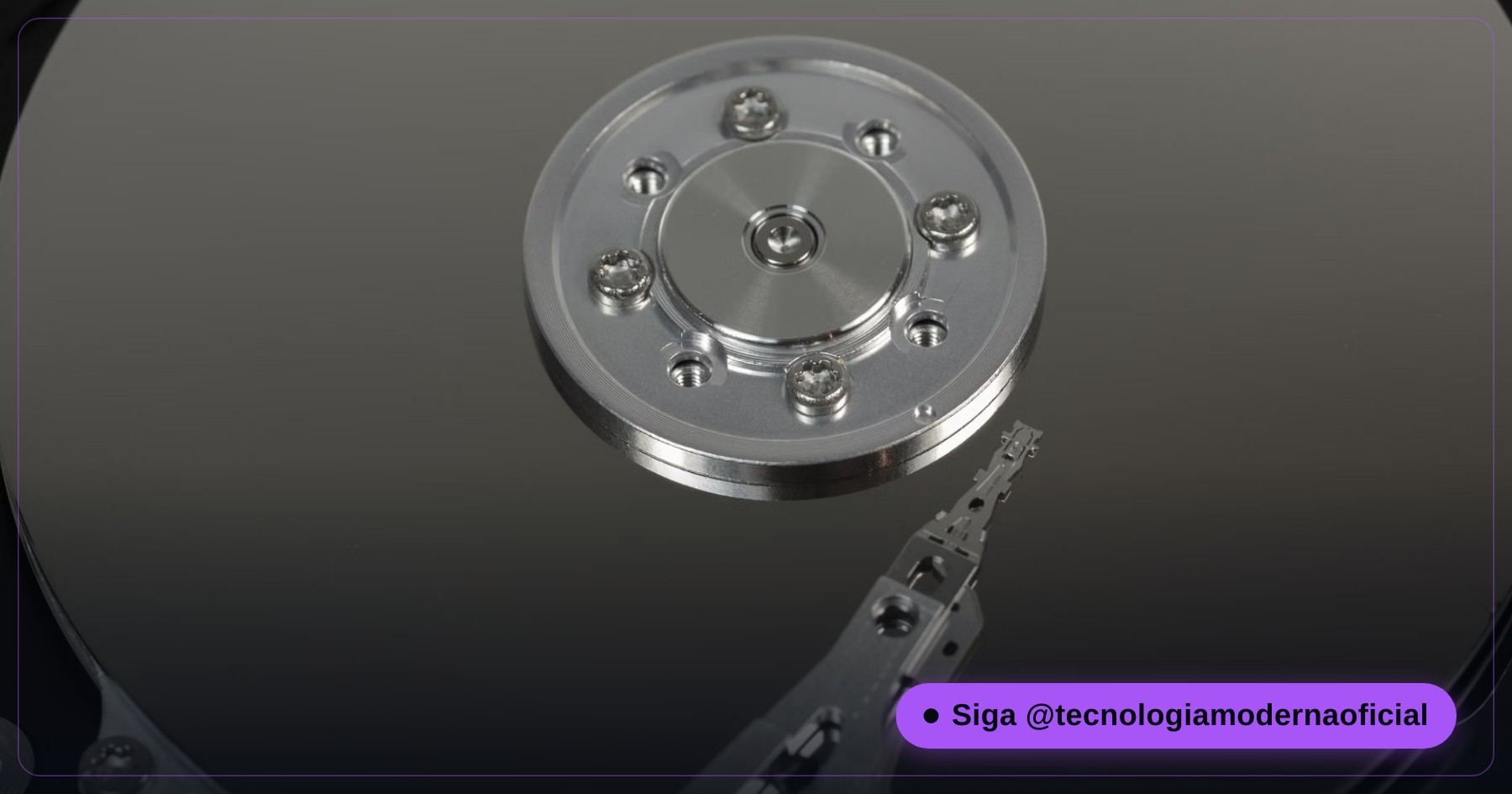
When the platters weaken or the read head wears out, the drive starts taking extra milliseconds to read small blocks. Windows waits for each read to finish, and you get those infuriating freezes. To map that slowness precisely we need low-level access — and that’s where Victoria comes in. For a quick first check, start with the hidden warning from your HDD or SSD.
⬇️ Where Victoria Comes From and the Official Download
Victoria isn’t generic commercial software — it was created by an engineer focused on lab-level data recovery, and it talks to the drive controller far more directly than normal Windows tools.
- Download it only from the author’s official website — avoid download aggregators.
- Choose the version with the highest number.
- Extract it into a dedicated folder and run Victoria.exe as administrator.
⚠️ How It Behaves on SSDs and NVMe Drives
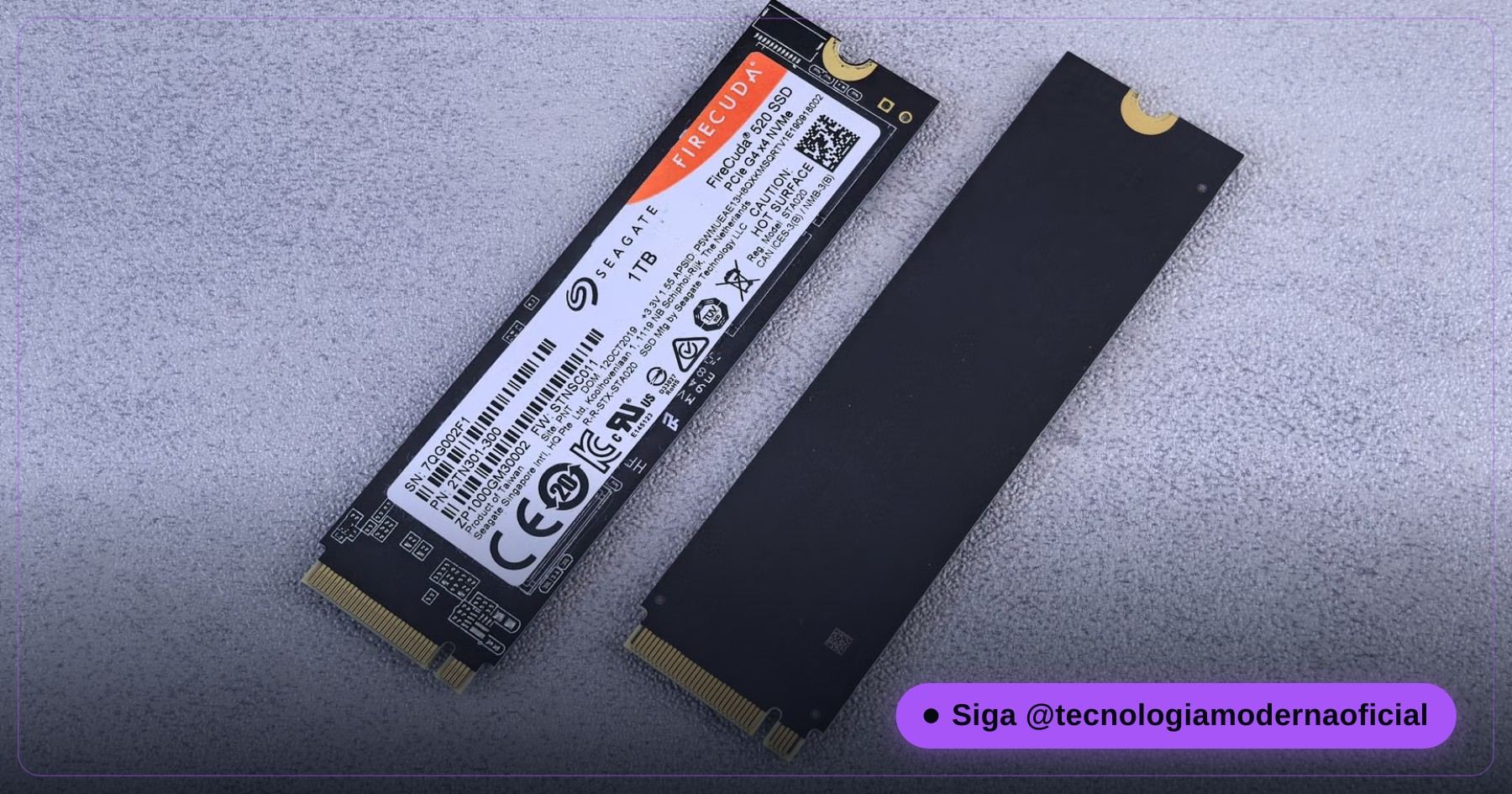
Before clicking Scan, a mandatory pause. Victoria was designed to map the physical surface of magnetic disks (HDDs). SSDs and NVMe drives use flash memory and very active controllers, so three points matter:
- Pointless wear: each SSD cell has a limited number of writes. Using repair or write modes on an SSD doesn’t “fix” the chip — it only stresses it and shortens its life.
- False alarms from the controller: a slow block on an SSD is rarely physical damage — it’s usually garbage collection, TRIM or thermal throttling.
- The verdict: on SSDs, use only quick read tests when you suspect the controller is freezing the machine. For SSD health, prefer the 2-minute SSD test.
🖥️ Mastering the Interface and Choosing the “Patient”
Victoria opens with a screen full of information, SMART tabs and text logs. Don’t be intimidated — the first job is making sure you’re talking to the right disk through the right channel.
Access mode: API vs. PIO. By default Victoria uses the Windows API, asking the system to pass low-level commands to the disk. For almost every diagnosis, API mode is perfect and safe. PIO mode talks directly to the motherboard’s ports, bypassing Windows — it’s for extreme lab recovery and can hang the SATA controller in inexperienced hands.
Selecting the target disk. On the right you’ll see every connected drive — HDDs, SSDs, NVMe and USB sticks. Be absolutely sure which one you select. Click the suspicious disk once and the left panel fills with its real identity: serial number, firmware, exact size in LBA and cache size.

🎯 The “Test & Repair” Tab
With the disk selected, open the Test & Repair tab (just Tests in older versions). Before clicking Scan, look at the options for what Victoria does when it finds an error:
| Option | What it does | Risk |
|---|---|---|
| ❌ Erase | Writes zeros over a bad sector | Destroys whatever file was there |
| ⚠️ Remap | Forces the drive to swap the bad sector for a factory spare | On a drive with hundreds of errors, the spare table can run out |
| ⚠️ Refresh | Reads the weak sector and rewrites it to strengthen the magnetic signal | On a very worn drive, the extra writing can be the final blow |
| ✅ Ignore | Only reads, times the response and paints the block | None — the mandatory choice for diagnosis |
📊 The X-Ray in Action: Reading It Millisecond by Millisecond
With the scan running, the main panel fills with thousands of small blocks as Victoria reads the whole disk in sequence. The secret isn’t looking for dead blocks — it’s analysing response time. The exact thresholds can vary slightly between versions, but the logic is always the same:
| Colour | Response time | Meaning |
|---|---|---|
| Light greys | Up to ~50 ms | Healthy — the head read the data instantly |
| Green | Up to ~200 ms | Attention — the read needed extra effort; occasional ones are tolerable on old HDDs |
| Orange | Up to ~600 ms | The slowness villain — the sector isn’t dead, so SMART stays quiet, but the head is struggling |
| Red | Above ~600 ms | Severe — sectors on the verge of failing |
| Blue with “Err” / X | No response | Unreadable sectors (bad blocks) — the drive is collapsing |
Remember that laptop freezing with the disk at 100%? This is where it shows up: clusters of orange and red blocks that no SMART tool reported.
⚖️ Verdict: Condemn or Save?
The magic is that you stop guessing and start seeing facts. If the scan is mostly grey with a few scattered green blocks, the drive is still reliable for secondary use or as a redundant backup.
But if you see clouds of orange or red blocks grouped together, the diagnosis is harsh: back up your most important files immediately and retire that drive. It doesn’t matter that Windows calls it healthy — its magnetic surface is failing, and at any moment one of those orange blocks may turn red and take your data with it.
- No backup yet? Act fast with Windows backup without installing anything.
- Drive already showing as RAW or asking to be formatted? See what to do when a drive turns RAW.
🔌 Testing Drives From Laptops and Old PCs
To test hard drives removed from laptops or desktops without assembling a machine, use a USB-SATA docking station or a USB 3.0 enclosure. Two tips:
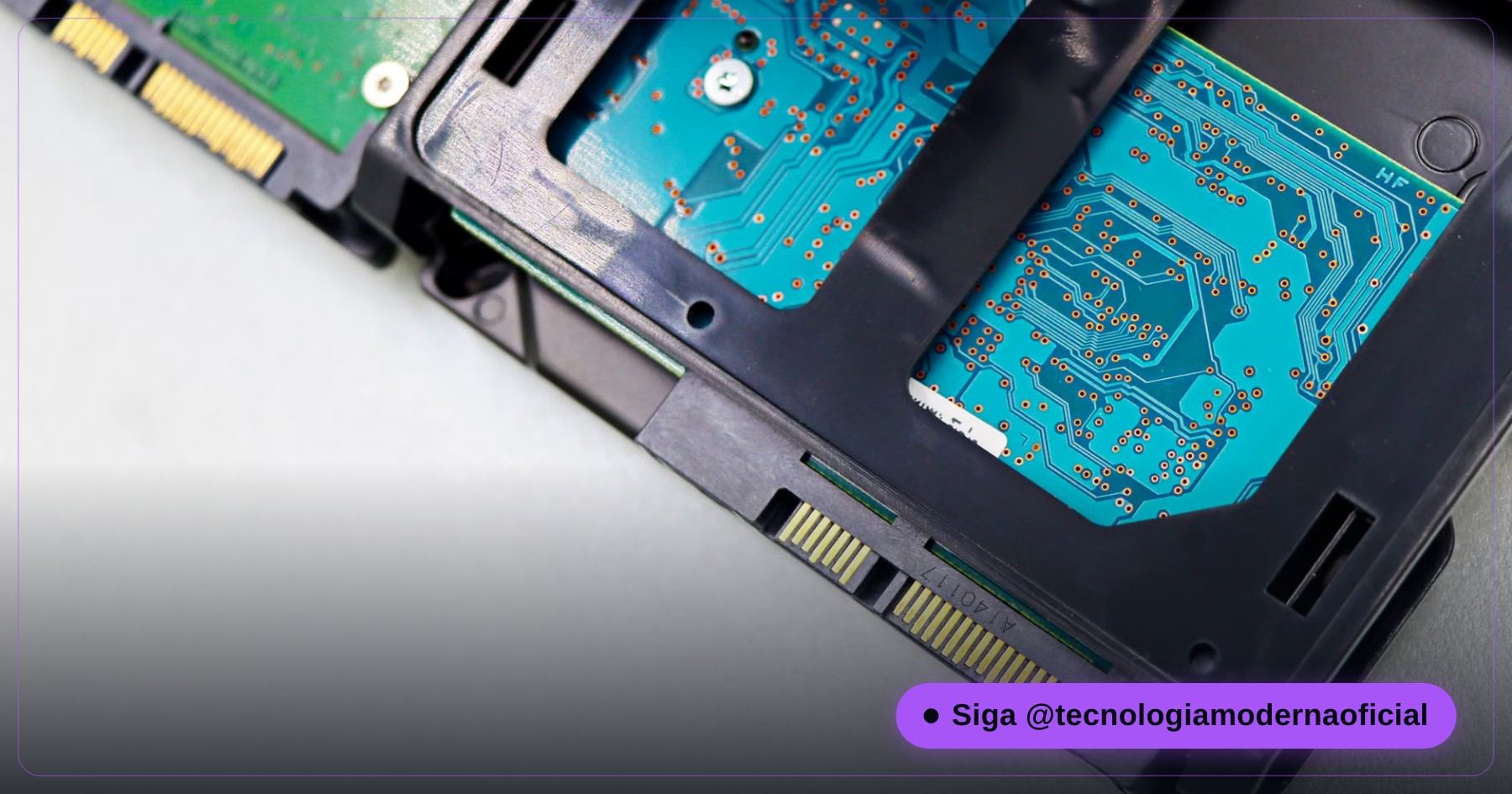
- Quality matters: cheap adapters don’t always pass low-level commands, and may make a healthy drive look slow.
- Use a USB 3.0 port and, for 3.5″ drives, a dock with its own power supply.
- If results look strange, repeat the test with the drive connected directly via SATA before condemning it.
🔧 Common Errors and How to Fix Them
| Problem | What to do |
|---|---|
| Victoria doesn’t detect the disk | Make sure it’s running as administrator. For external drives, try another cable or USB-SATA adapter. |
| The antivirus blocks or deletes the executable | A common false positive for low-level hardware tools. Download again from the official site and add a temporary exception only for that folder. |
| The scan stalls halfway | It may be a badly damaged sector blocking the read. Wait — don’t force it to close mid-process. |
| “Err” or timeouts right at the start | The drive is in critical condition. Prioritise backing up accessible data before any more testing. |
| Results change every run | Normal on drives on the edge of failure — behaviour varies with temperature and vibration. That alone is a warning sign. |
Another classic myth that makes people blame the wrong component: see the truth about msconfig.
FAQ
Does Victoria work on external USB drives?
Yes, as long as the USB connection passes SMART/ATA commands — most modern docks and adapters do. A good-quality dock makes a real difference to test reliability.
Do I need to be a technician to use it?
For basic use with Ignore + Read, no — just follow this guide. PIO mode and the repair actions (Erase, Remap, Refresh) require more knowledge and should stay with those who understand the risks.
Is running the test safe for the drive?
With Ignore selected and Read mode, yes — it’s a passive read with no writing. The risk only exists if you use Erase, Remap or Refresh without understanding the consequences.
Is Victoria only for Windows?
The most used version is for Windows, but technicians also use older variants from bootable media for deeper lab diagnosis.
CrystalDiskInfo says “Good” but Victoria shows orange blocks. Which one is right?
Both — they measure different things. SMART only records dead sectors; Victoria shows sectors that are still readable but very slow. Orange clusters are a real reason to back up and replace the drive.
Should I run Victoria on my SSD regularly?
No. On SSDs, use it only for quick reads when you suspect a problem. For routine SSD health checks, SMART-based tools are more appropriate and don’t add wear.
🎮 How much did you learn?
Once you pick an answer it locks in — reload the page to try again.
1. Why can CrystalDiskInfo say “Good” while the PC keeps freezing?
2. Which option should you always select for a safe diagnosis?
3. What do clusters of orange blocks mean?
4. Why shouldn’t you use repair modes on an SSD?
5. What should you do if the screen fills with blue “Err” blocks?
Esse conteúdo ajudou você?
Compartilha com alguém que também vai curtir — é rapidinho e ajuda muito o nosso trabalho a chegar em mais gente.
Conhecimento só tem valor quando compartilhado.
Manter essa estrutura de laboratórios funcionando e produzir conteúdos de engenharia de forma totalmente gratuita e acessível exige tempo e dedicação diária à bancada. Esse guia salvou os seus arquivos? Você pode contribuir diretamente para manter o nosso trabalho independente forte. Apoie doando qualquer valor!
Quer apoiar a nossa bancada independente?
[email protected]