CHKDSK: What It Can Do, When to Use It and When NOT to Use It
What the command really checks, the /f, /r, /x, /scan and /spotfix switches, and why running /r on a drive that’s already failing can seriously hurt your chances of recovering your data.
Straight to the point:
- With no switch, CHKDSK only analyzes; with /f or /r it writes to the disk to fix things.
- On the system drive (C:), /f and /r need a restart to actually run.
- Drive showing signs of physical failure? Copy the data before running any repair — never the other way around.
- /r has little benefit on a healthy SSD, which already manages bad blocks internally.
- CHKDSK, SFC and DISM check different layers — they’re not interchangeable.
- Introduction
- Straight Answer: Is It Worth Running Now?
- What CHKDSK Really Checks
- Signs CHKDSK Can Help
- Commands and Switches: /f, /r, /x, /scan, /spotfix
- System Drive (C:) vs an External Drive
- How Long It Takes
- When NOT to Use CHKDSK
- Does CHKDSK Make Sense on an SSD?
- Dying Drive: Why /r Can Make Everything Worse
- CHKDSK vs SFC vs DISM: Which to Use
- Safe Step by Step
- Common Mistakes
- Frequently Asked Questions
🩺 CHKDSK: What It Can Do and When to Use It
If Windows suggested “scanning and fixing” a drive, or someone told you “just run chkdsk” when a file won’t open, you know the command exists — but most people use it blindly, without knowing exactly what it checks, which switches to use and, above all, in which situations it can do more harm than good.
That last part really matters: CHKDSK isn’t a 100% safe, reversible tool as many people think. On a hard drive already showing signs of failure, running the wrong command at the wrong time can turn a partly recoverable file into a permanent loss.
✅ Straight Answer: Is It Worth Running Now?
If the problem is a specific file that won’t open, a folder that “disappears” while still showing used space, or Windows announcing a disk check after a forced shutdown — yes, it’s worth running CHKDSK, starting with chkdsk C: /f (change the letter to the right drive). If you don’t know whether the problem is physical or just the file system, always start with the lightest, risk-free version, which only analyzes and reports:
chkdsk C: /scanNow, if the drive is making strange noises, disconnecting by itself, showing a S.M.A.R.T. alert, or you simply don’t trust it anymore — stop before running anything with /r. Copy the important files first (or make a full disk image if critical data is at stake) and only then think about repairs.
🔍 What CHKDSK Really Checks
CHKDSK (“Check Disk”) is a built-in Windows utility that checks the logical integrity of the file system — NTFS, FAT32 or exFAT — and, when explicitly asked, the physical integrity of the disk surface. These are very different things.
| Layer | What it checks | Typical problem it solves |
|---|---|---|
| Logical | The Master File Table (MFT) — the index of where each file lives | Folders that look empty, “file is corrupted and unreadable”, access denied to a folder |
| Cross-linked files | Two files claiming the same physical chunk of disk | Leftover fragments show up as File0001.chk in a FOUND.000 folder |
| Physical (/r only) | Reads sector by sector looking for damaged areas | Marks bad sectors so Windows never writes there again |
The physical check is useful on mechanical hard drives with media defects — but, as you’ll see in the SSD section, it makes much less sense on solid-state drives.
🚩 Signs CHKDSK Can Help
- A boot message like “Scanning and repairing drive (C:)” right after turning on the PC — Windows marked the volume as “dirty” (usually after a forced shutdown).
- “The file or directory is corrupted and unreadable” when opening or copying a specific file.
- A folder that shows used space but looks empty in File Explorer.
- Recent unexpected shutdowns (power cut, freeze, holding the power button) — the most common cause of logical inconsistency.
- An automatic repair loop at boot — not always the disk, but worth ruling out from the Recovery Environment.
- Before or after cloning a drive: run /f on the source before cloning so you don’t copy corruption; see how to clone an HDD to an SSD.
⌨️ Commands and Switches: /f, /r, /x, /scan, /spotfix
| Command | What it does | Writes to disk? | Restart (drive in use)? |
|---|---|---|---|
chkdsk C: | Only analyzes and reports, fixes nothing | No | No |
chkdsk C: /scan | Online scan (the volume stays usable), logs errors without fixing them | No | No |
chkdsk C: /f | Fixes file-system errors | Yes | Yes, if it’s the system drive or in use |
chkdsk C: /r | Finds bad sectors and recovers readable data (includes /f) | Yes | Yes, if it’s the system drive or in use |
chkdsk C: /x | Forces the volume to dismount first (includes /f) | Yes | Possibly |
chkdsk C: /spotfix | Fixes only the errors a previous /scan found, taking the drive offline for a few seconds | Yes, only those spots | No |
chkdsk D: /b | Re-evaluates clusters already marked bad (useful after cloning to a new disk) | Yes | If applicable |
The /scan + /spotfix model (check in the background without taking the system down, then fix only what’s needed) is more modern and replaces many of the cases where you used to reboot and wait hours on a black screen.
chkdsk with no switch (or with /scan) is safe to run at any time, on any drive, because it changes nothing. From /f onwards, the command writes to the disk — and those changes have no Ctrl+Z.🔁 System Drive (C:) vs an External Drive
On a secondary drive that Windows isn’t actively using, CHKDSK can lock the volume, run the full check and hand access back — no restart needed. On the drive Windows itself runs from (usually C:), that’s impossible: the system, the page file and dozens of processes keep files open all the time.
So when you run chkdsk C: /f, Windows usually replies that it can’t lock the current drive and asks whether to schedule the check for the next restart. Answer Y: on the next boot, CHKDSK runs before Windows fully loads, then the PC restarts normally.
If Windows won’t even start, you can reach the same result from the Recovery Environment: hold Shift while clicking Restart → Troubleshoot → Advanced options → Command Prompt. There, the Windows drive letter may not be C: — run diskpart and list volume first to confirm.
⏱️ How Long It Takes
| Factor | Impact |
|---|---|
| /f vs /r | /f only checks file-system metadata and is usually quick; /r reads every sector of the whole disk |
| Drive size | A small or nearly empty volume finishes in seconds; several terabytes under /r can take hours |
| HDD vs SSD | Sector-by-sector reading is much slower on a mechanical drive |
| Real bad sectors | The drive’s firmware retries each bad sector many times — /r can look frozen for hours while still working |
| Connection | Internal SATA/NVMe is faster than USB; USB 3 is faster than USB 2 |
If it seems stuck for a long time, the recommendation is to let it run — interrupting a CHKDSK mid-repair (forcing the PC off) is one of the most common ways to make existing corruption worse.
⛔ When NOT to Use CHKDSK
| Scenario | Why not | What to do instead |
|---|---|---|
| Clear signs of physical failure (clicking, random disconnects, S.M.A.R.T. alert) | /r stresses a dying drive and can push it to total failure | Copy or clone the data first |
| RAID array | CHKDSK only sees the logical volume, not each physical disk | Check each disk’s health in the RAID controller first |
| Read-only volume | It can’t actually repair in that state | Fix the read-only condition first |
| Drive turned RAW (“you need to format the disk”) | CHKDSK needs a recognizable file system — on RAW it doesn’t run | See hard drive or SSD turned RAW |
| Critical data with no backup on a doubtful drive | Repairs can’t be undone | Copy or clone first, repair later |
💾 Does CHKDSK Make Sense on an SSD?
It depends on the switch. /f (file system only) works normally on an SSD and is safe — recommended in the same logical-corruption scenarios as on a hard drive. The real question is /r.
SSDs manage defective blocks internally through the flash translation layer (FTL) and wear leveling: when a NAND cell starts failing, the controller remaps it to a spare cell, invisibly to the operating system. So the “bad sector” /r was designed to find on a mechanical drive practically doesn’t exist the way Windows sees a healthy SSD.
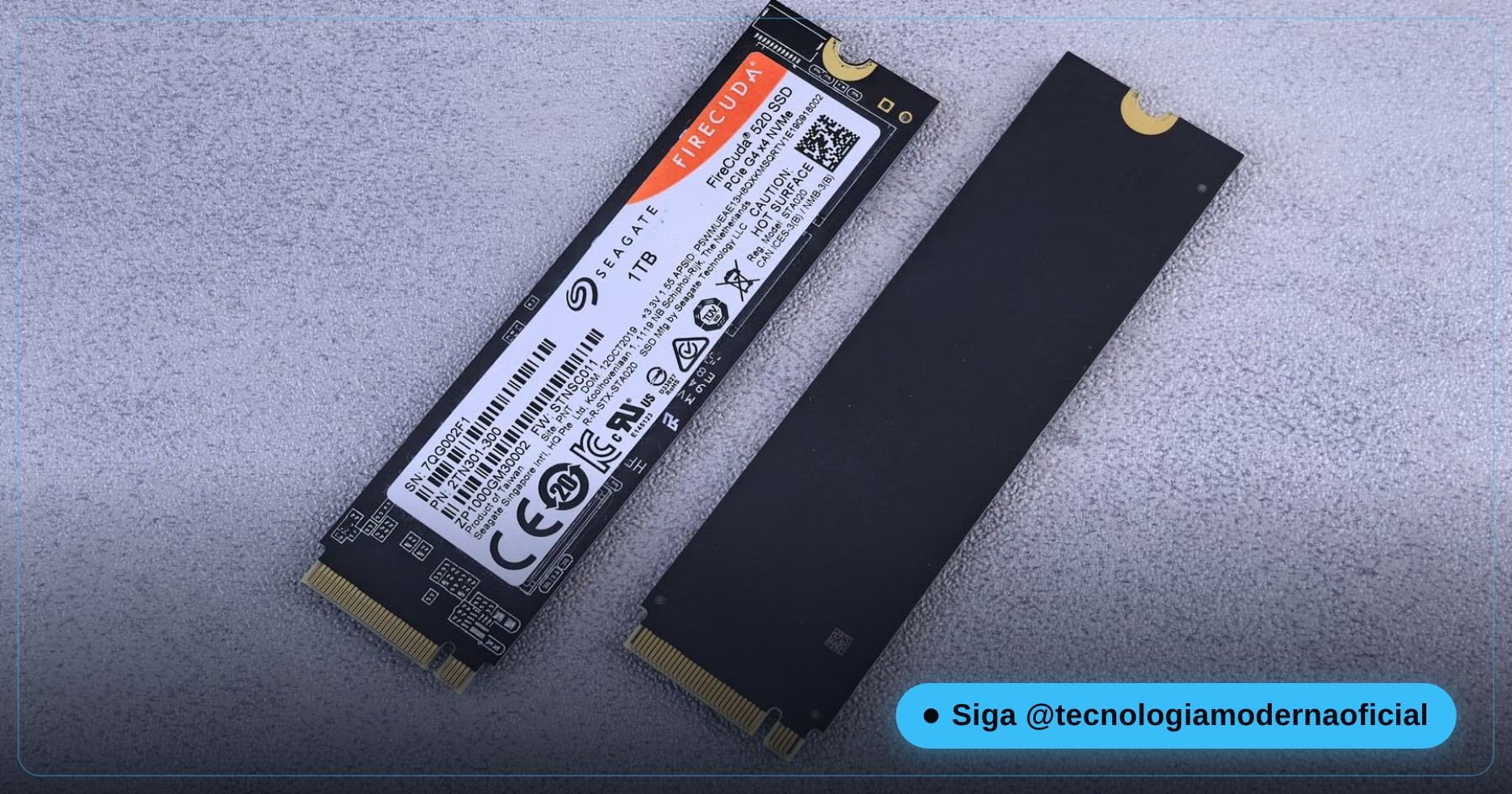
Running /r on an SSD isn’t physically “dangerous”, but it’s a long read with far less return. For SSD diagnosis, the drive’s own S.M.A.R.T. attributes are more useful — see 4 commands that reveal your PC’s real health and the 2-minute test that reveals whether your SSD is dying.
⚠️ Dying Drive: Why /r Can Make Everything Worse
When a mechanical hard drive is physically dying — a degrading read head, increasingly unstable sectors, clicking noises — its firmware already retries each problem sector dozens of times. A full /r forces that retry process on every problem sector across the whole disk, adding heat and prolonged mechanical stress to an already weak read head, with a real risk of pushing the drive into total failure midway.
There’s an even subtler problem: when CHKDSK finds corrupted MFT records on a failing drive, its own “repair” logic can cut folder links, turn files into generic orphan fragments and rewrite directory structures — so the “repaired” drive may end up with less chance of file recovery than the untouched corrupted drive had, because recovery tools work best on the original metadata.
- Stop using the drive as soon as you notice the signs.
- Copy or clone it first — ideally read-only, with no repair on the source.
- Only then — and only on the copy, when it makes sense — consider repair tools like CHKDSK.
To recover deleted files first, Windows’ own tool is winfr — see how to recover deleted files on Windows without programs.
🧩 CHKDSK vs SFC vs DISM: Which to Use
| Tool | What it checks | When to use it |
|---|---|---|
chkdsk | The file system and the disk itself (MFT, clusters, sectors) | “Corrupted file” errors, drive marked dirty, signs of disk problems |
sfc /scannow | Windows’ protected system files against a known-good copy | Windows acting strangely, broken features, “corrupted system files” |
DISM /Online /Cleanup-Image /RestoreHealth | The component store SFC uses as its repair source | When SFC says it couldn’t fix some files |
When the problem seems to be Windows itself (not the disk), run DISM first, then SFC — the full guide is in SFC and DISM: the 2 commands that fix Windows. Treat CHKDSK as a separate tool for when the symptom points to the disk.
🛠️ Safe Step by Step
- Assess the scenario: any physical signs of failure? If so, go to the “dying drive” section first.
- Back up what matters, even if the drive seems healthy.
- Run it without switches or with /scan to see what it finds, changing nothing.
- If there are file-system errors, run
chkdsk C: /f(or the right letter). - Only use /r if you suspect bad sectors on a healthy mechanical drive — on an SSD, check S.M.A.R.T. instead.
- On C:, accept scheduling for the next restart and don’t interrupt the process.
- After cloning to a new drive, run it with /b to re-evaluate the bad-sector list.
🐛 Common Mistakes
| Mistake | Why it’s a problem |
|---|---|
| Running /r “just in case” on a drive that’s already failing | That’s exactly where it can do the most damage |
| Interrupting CHKDSK midway | It can leave the file system worse than before |
| Thinking CHKDSK, SFC and DISM are the same | Each checks a different layer; the wrong one wastes time |
| Repairing before backing up critical data | The order matters and can’t be undone |
| Ignoring S.M.A.R.T. alerts and repairing again and again | Sometimes the right answer is simply replacing the drive |
| Confusing a RAW drive with a normal file-system error | CHKDSK only fixes the second one |
FAQ
Does CHKDSK delete files?
Not on purpose, but when fixing inconsistencies it can truncate files or turn them into generic fragments in a FOUND.000 folder — which can mean losing original names or part of the content in severe corruption.
Is running chkdsk with no switches safe?
Yes. Without /f, /r, /x or similar, CHKDSK only analyzes and reports, writing nothing. From /f onwards it actually fixes (and writes).
Can I use the computer while CHKDSK runs on C:?
Not during the check itself — /f or /r on C: needs a restart so it can run before Windows fully loads.
Should I run chkdsk /r regularly as prevention?
No. It’s a diagnosis and repair tool for real symptoms, not routine maintenance — especially on SSDs.
Does CHKDSK work on USB sticks and external drives?
Yes, as long as the device has a recognized file system (NTFS, FAT32, exFAT) and isn’t read-only. If it shows as RAW, CHKDSK won’t run.
What’s the difference between chkdsk /f and /r?
/f only fixes file-system errors (metadata). /r does everything /f does and also physically scans every sector for media defects, so it takes much longer.
Does chkdsk /r make sense on an SSD?
It has limited value. SSDs already manage bad blocks internally, so S.M.A.R.T. attributes are usually more useful for diagnosis.
My drive is making strange noises — can I still run chkdsk?
The general advice is not to run /r before copying important data. Mechanical noise usually means physical failure in progress, and a full scan can speed it up.
🎮 How much did you learn?
Once you pick an answer it locks in — reload the page to try again.
1. What does /r do beyond /f?
2. Why does CHKDSK need a restart to run on C:?
3. What should you do before running chkdsk /r on a noisy drive?
4. Why does chkdsk /r have limited value on healthy SSDs?
5. Which tool checks Windows’ own system files, not the disk?
Esse conteúdo ajudou você?
Compartilha com alguém que também vai curtir — é rapidinho e ajuda muito o nosso trabalho a chegar em mais gente.
Conhecimento só tem valor quando compartilhado.
Manter essa estrutura de laboratórios funcionando e produzir conteúdos de engenharia de forma totalmente gratuita e acessível exige tempo e dedicação diária à bancada. Esse guia salvou os seus arquivos? Você pode contribuir diretamente para manter o nosso trabalho independente forte. Apoie doando qualquer valor!
Quer apoiar a nossa bancada independente?
[email protected]