The Truth About Using msconfig: Commands to Check Your Real CPU and RAM
Ticking boxes in msconfig doesn’t unlock hidden performance — it does the opposite. Here are the commands to audit your own computer with PowerShell and prove, with numbers, that Windows already uses 100% of your hardware.
The truth about msconfig in five points:
- Windows already uses every CPU core and all installed RAM from the very first boot.
- “Number of processors” and “Maximum memory” in msconfig exist to limit the machine, not speed it up.
- Leave both boxes unticked — that’s the guarantee of full performance.
- Two PowerShell commands prove it: real cores and threads, installed vs. usable memory.
- Some “missing” RAM is normal with integrated graphics or 32-bit Windows.
- Introduction
- Why the Myth Spread
- Checking msconfig in Practice
- Opening PowerShell as Administrator
- Checking the Real Number of CPU Cores
- Installed vs. Usable Physical Memory
- Not Every Difference Is msconfig’s Fault
- Bonus Commands for a Full Audit
- Other IT Myths That Still Fool People
- Common Errors and How to Fix Them
- Frequently Asked Questions
🧠 The Technical Truth Behind the Myth
If you came from our video about the famous msconfig myth, here is the promised guide with the commands to audit your own machine — clean, safe and straight to the point.
Out of the box, Windows already starts using 100% of your processor’s cores and all the RAM physically installed on the motherboard. The “Advanced boot options” screen inside msconfig isn’t there to speed the PC up — it’s there for developers and technicians to limit the machine on purpose, usually to test how software behaves on weaker hardware without needing a weaker computer.

📜 Why the Myth Spread
The confusion comes from old tutorials from the Windows XP and Vista era that taught these options for diagnosing hardware problems — not for improving performance. Somewhere along the way someone flipped the logic, and the myth stuck. It’s been copied from forum to forum and video to video ever since.
The legitimate uses of those boxes have always been technical:
- Diagnosing instability: technicians limited the active cores to find out whether a freeze was caused by poorly implemented multi-threading in old software.
- Compatibility testing: developers artificially reduced available RAM to simulate how a program would behave on a modest PC, without another physical machine.
- Isolating a faulty memory module: in rare cases, reducing “usable” memory helped check whether a problem was in a specific area of RAM.
In other words: they were always diagnostic and testing tools, never “optimisation”. Using them day to day without knowing exactly why only takes power away from your own hardware.
🔍 Checking msconfig in Practice
Before even opening PowerShell, you can visually confirm everything is at the default:
- Press Win + R, type
msconfigand press Enter. - Go to the Boot tab.
- Click Advanced options.
- Confirm that “Number of processors” and “Maximum memory” are unticked.
🛠️ Opening PowerShell as Administrator
- Click the Windows Start menu.
- Type powershell in the search box.
- Right-click Windows PowerShell and choose Run as administrator.

With PowerShell open in administrator mode, the commands below work by pasting them directly and pressing Enter. None of them changes anything on your system — they only read information.
💻 Checking the Real Number of CPU Cores
This command lists the exact name of your processor, the number of physical cores and the number of threads (logical processors) Windows already recognises natively at boot:
Get-CimInstance Win32_Processor | Select-Object Name, NumberOfCores, NumberOfLogicalProcessorsThe result shows the full capacity of your chip. It proves the system doesn’t need you to tick any box in msconfig to see every core — it has seen them since installation. Compare it with the manufacturer’s spec page for your processor model: the numbers should match.
🧮 Installed vs. Usable Physical Memory
Copy the whole block below and paste it into PowerShell. It calculates and shows, in gigabytes, how much memory is installed on the motherboard and how much Windows is free to use:
$Installed = [math]::Round((Get-CimInstance Win32_ComputerSystem).TotalPhysicalMemory / 1GB, 2)
$Usable = [math]::Round((Get-CimInstance Win32_OperatingSystem).TotalVisibleMemorySize / 1MB, 2)
Write-Host "Installed physical memory: $Installed GB" -ForegroundColor Cyan
Write-Host "Memory usable by Windows: $Usable GB" -ForegroundColor Green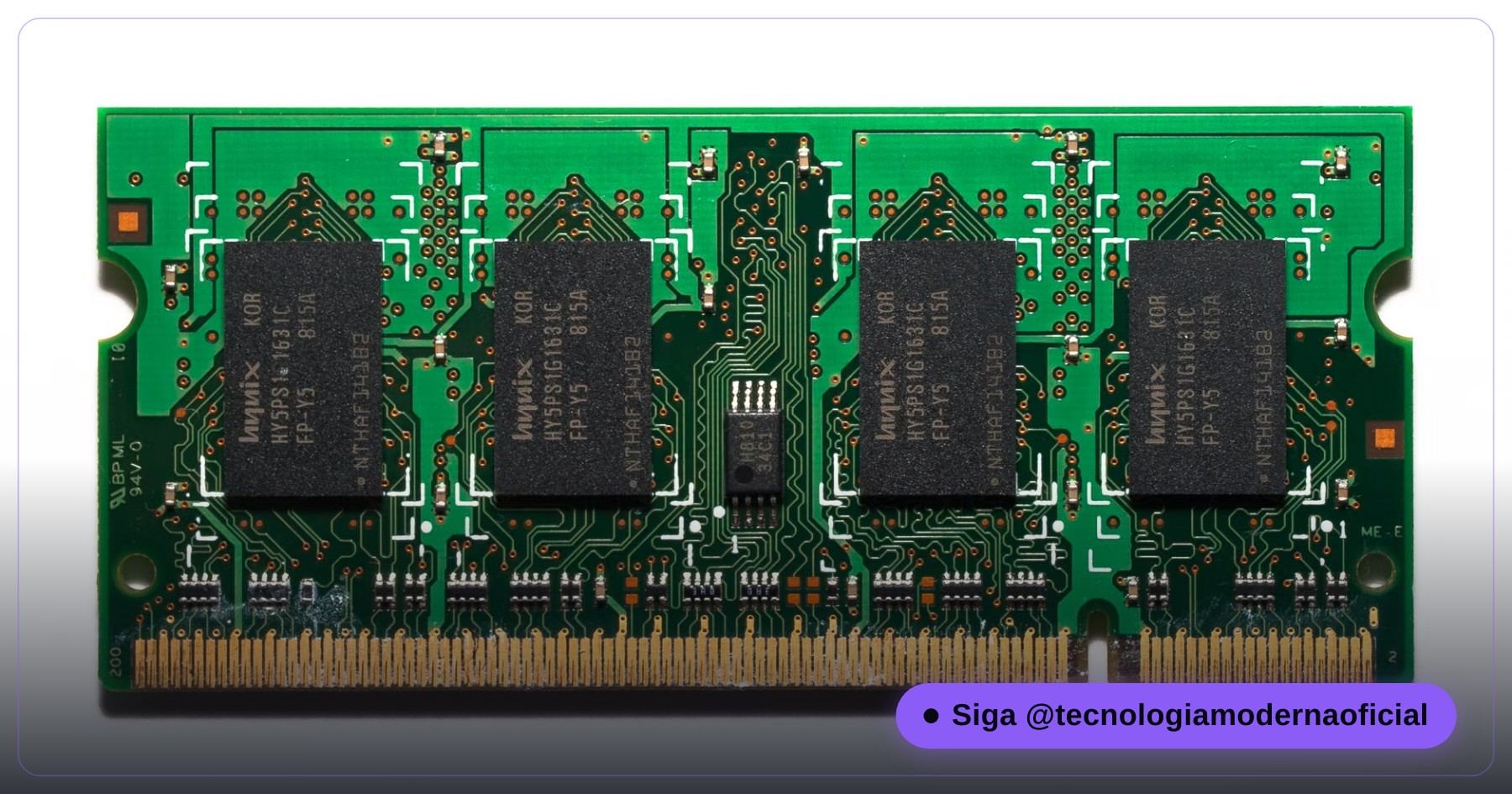
If the usable memory is equal (or extremely close) to the installed memory, your PC is fine. Windows usually reserves only a tiny slice of megabytes for basic hardware.
⚠️ Not Every Difference Is msconfig’s Fault
An important correction many people forget: if the usable value comes out noticeably lower than the installed one, that doesn’t always mean a wrong setting. There are legitimate, common causes:
| Cause | What happens | Is it a problem? |
|---|---|---|
| Shared video memory | PCs and laptops with integrated graphics (Intel or AMD APUs) reserve part of the RAM as video memory. On a 4 GB laptop it’s common to “lose” 512 MB to 1 GB or more. | No — the hardware is working as designed. |
| 32-bit Windows | 32-bit versions of Windows have an addressing ceiling of roughly 4 GB, no matter how much RAM is installed. | Not a bug — it’s an architecture limit. The fix is installing 64-bit Windows. |
| msconfig with an option ticked | The only real cause msconfig can create — see how to check it above. | Yes, but easy to fix by unticking the option. |
To confirm whether your Windows is 32 or 64-bit (and rule that cause out), run:
(Get-CimInstance Win32_OperatingSystem).OSArchitectureIn short: with integrated graphics or 32-bit Windows, a 1–2 GB difference between installed and usable is completely normal. Only suspect msconfig if the gap is much larger, or if the boxes really are ticked.
🎁 Bonus Commands for a Full Audit
While PowerShell is open, check two more points that raise similar doubts:
Real speed of the memory modules — confirms whether the RAM runs at the speed advertised, or whether XMP/EXPO wasn’t enabled in the firmware (a common reason for RAM running slower than it should):
Get-CimInstance Win32_PhysicalMemory | Select-Object Manufacturer, Capacity, SpeedWhether any CPU core is disabled in the firmware — useful when someone changed a BIOS setting and limited cores by accident:
Get-CimInstance Win32_Processor | Select-Object NumberOfCores, NumberOfEnabledCore
If NumberOfEnabledCore is lower than NumberOfCores, a core was disabled manually in the BIOS/UEFI — review the settings there, not in msconfig.
🕵️ Other IT Myths That Still Fool People
- “Registry cleaners make the PC faster”: the real gain is practically zero on modern systems, and an aggressive cleaner can delete something important.
- “Defragmenting an SSD improves speed”: the opposite — it wastes write cycles with no speed gain, since an SSD reads any cell at the same speed. See the Victoria HDD/SSD guide to understand drive wear.
- “Closing processes in Task Manager frees RAM for good”: Windows already manages memory intelligently, using “free” RAM as cache for recent files — that’s optimisation, not waste.
- “Formatting fixes any slowness”: it fixes software clutter, but not hardware — a worn disk stays slow after any format. See the hidden warning from your HDD or SSD.
The pattern behind all these myths: someone confused a diagnostic tool with an optimisation one. The best “optimisation” is almost always a correct diagnosis — for example, the 4 commands that show the PC’s real health — and, for day-to-day junk, a simple cleanup script.
🔧 Common Errors and How to Fix Them
| Problem | What to do |
|---|---|
| PowerShell says “is not recognized as a cmdlet” | Make sure you copied the whole command block without breaking lines, and that you’re in Windows PowerShell (not the classic Command Prompt). |
| The command runs but shows nothing | Make sure you opened it as administrator — some CIM queries need elevation to return complete data. |
| Usable memory much lower even with msconfig correct | Run the architecture command (32/64-bit) and check for integrated graphics using shared memory, as explained above. |
| NumberOfCores lower than expected | Check the BIOS/UEFI for disabled cores, or confirm the exact processor model on the manufacturer’s website. |
FAQ
Can ticking the msconfig boxes speed up games or heavy programs?
No, never. The effect is always a limitation, never acceleration. If someone told you otherwise, they were probably confusing it with another setting or repeating the myth without testing.
Is there any scenario where I should tick these boxes?
Only for specific technical diagnosis — for example, testing whether a system freeze disappears with fewer active cores. For everyday use, always leave them unticked.
My usable RAM is much lower. What now?
First check whether you have integrated graphics or 32-bit Windows — the most common causes, and neither indicates a problem. Only after ruling both out is it worth checking msconfig.
Do these commands work on Windows 10 and 11?
Yes. The Get-CimInstance cmdlets used here are standard in PowerShell since Windows 8 and need nothing extra.
Do I always need to run them as administrator?
For the commands in this guide, it’s recommended — it ensures all data comes back complete, without permission restrictions.
Do these commands change anything on my PC?
No. They only read information about the processor and memory. You can run them as many times as you like with no risk.
🎮 How much did you learn?
Once you pick an answer it locks in — reload the page to try again.
1. What does ticking “Number of processors” in msconfig do?
2. What were these msconfig options originally meant for?
3. Why might usable RAM be lower than installed RAM on a laptop?
4. What is the approximate memory ceiling of 32-bit Windows?
5. If NumberOfEnabledCore is lower than NumberOfCores, where should you look?
Esse conteúdo ajudou você?
Compartilha com alguém que também vai curtir — é rapidinho e ajuda muito o nosso trabalho a chegar em mais gente.
Conhecimento só tem valor quando compartilhado.
Manter essa estrutura de laboratórios funcionando e produzir conteúdos de engenharia de forma totalmente gratuita e acessível exige tempo e dedicação diária à bancada. Esse guia salvou os seus arquivos? Você pode contribuir diretamente para manter o nosso trabalho independente forte. Apoie doando qualquer valor!
Quer apoiar a nossa bancada independente?
[email protected]