Windows 11 Install USB: the Official Way, Step by Step (and What to Do If Your PC Lacks TPM 2.0)
Create the bootable USB with Microsoft’s tool or with Rufus, find your PC’s boot key, check TPM and Secure Boot with two commands and understand the options — and the risks — for computers Windows 11 says aren’t compatible.
The path in 5 lines:
- A USB drive of 8 GB or more (everything on it will be erased).
- Official tool: “Create installation media” on Microsoft’s site — or Rufus with the official ISO.
- Check the PC:
Get-TpmandConfirm-SecureBootUEFIshow whether it meets the requirements. - Boot key: F12, F11, F9, F8 or Esc, depending on the brand.
- PC without TPM 2.0: you can install, but with no guarantee of updates from Microsoft — understand before deciding.
- Introduction
- What You Need
- Is Your PC Compatible with Windows 11?
- Creating It with Microsoft’s Tool
- Creating It with Rufus (More Options)
- What If the PC Lacks TPM 2.0 or a Supported Processor?
- Booting from the USB: Your Brand’s Boot Key
- The Installation, Screen by Screen
- First Steps After Installing
- In-Place Upgrade or Clean Install?
- Using the USB to Repair, Without Wiping
- Common Problems
- Frequently Asked Questions
💾 Why Keep a Windows Install USB
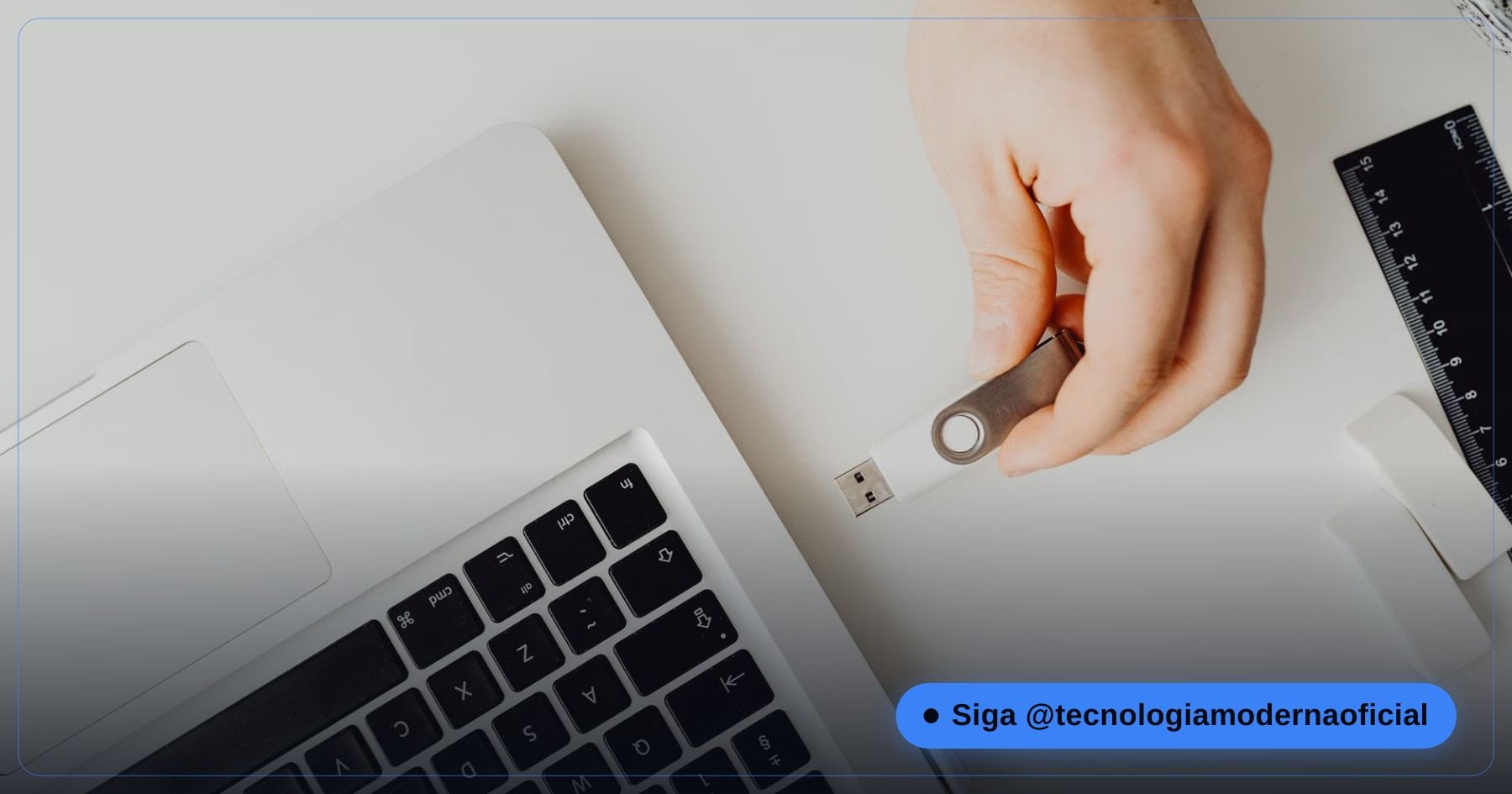
With an install USB you can wipe and reinstall Windows from scratch, install onto a new SSD, reach the repair tools when Windows won’t start and even rescue files from the recovery Command Prompt. And timing matters: Windows 10 lost free support in October 2025 and the consumer Extended Security Updates program ends on October 13, 2026 — many people will need to move.
📋 What You Need
| Item | Detail |
|---|---|
| USB drive | 8 GB or more; all its contents will be erased |
| Internet | The download is several GB |
| A working Windows PC | To run the creation tool |
| License | PCs that already had Windows activate by themselves when reinstalling the same edition |
| Backup | If you’ll wipe the drive, copy your files first |
The backup is the part nobody can skip — the step by step is in full Windows backup.
🔍 Is Your PC Compatible with Windows 11?
Windows 11 requires, among other things, TPM 2.0, Secure Boot and a recent-generation processor. Check the first two with PowerShell as administrator:
Get-Tpm | Select-Object TpmPresent, TpmReady, ManufacturerVersionFull20
Confirm-SecureBootUEFI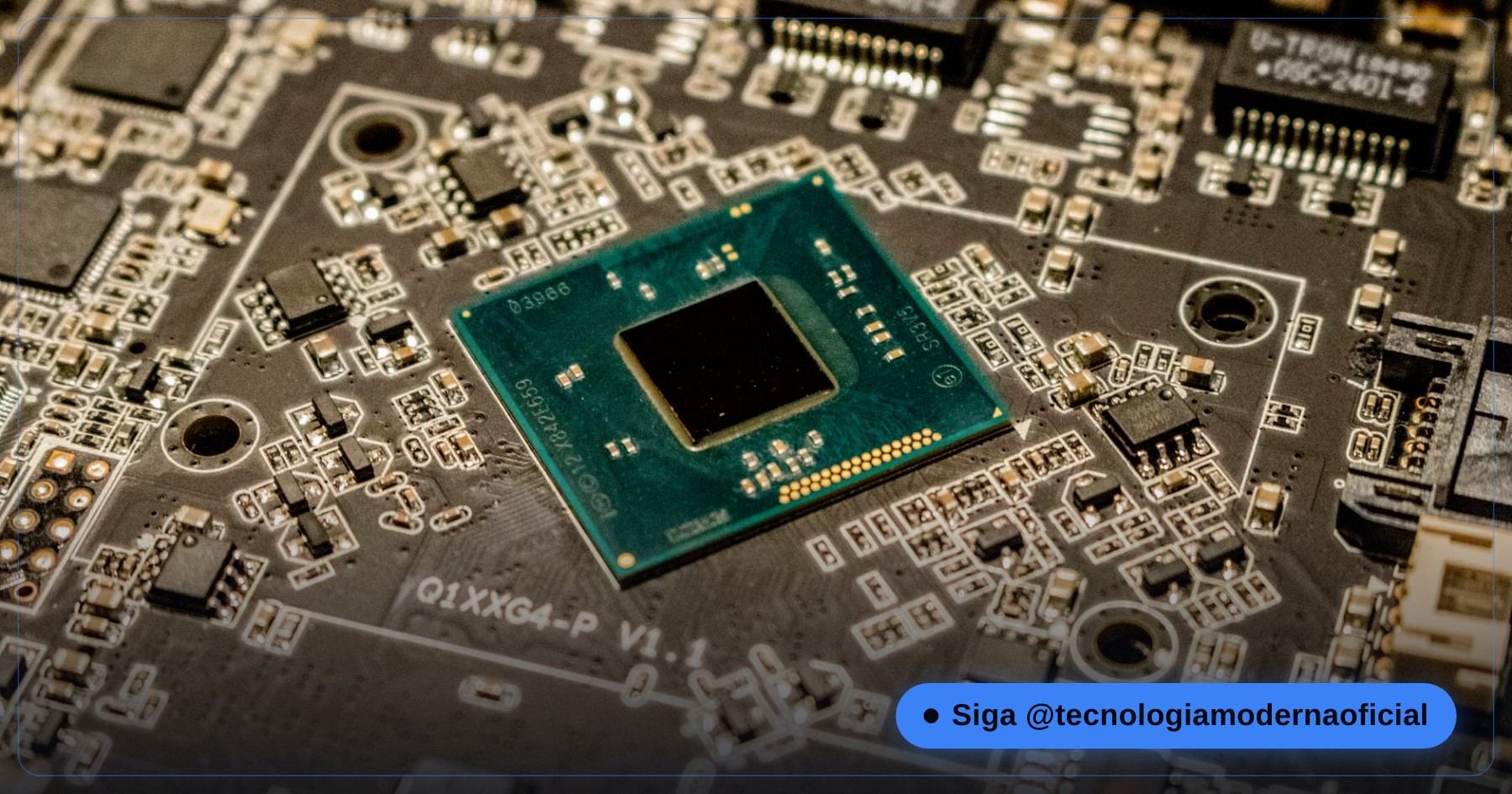
| Result | What it means |
|---|---|
| TpmPresent True and TpmReady True | ✅ TPM active |
| TpmPresent False | TPM disabled in the BIOS or missing — look in the BIOS for “fTPM” (AMD) or “PTT” (Intel) |
| Confirm-SecureBootUEFI = True | ✅ Secure Boot on |
| Confirm-SecureBootUEFI = False | Secure Boot off — you can turn it on in the BIOS |
| Error “Cmdlet not supported on this platform” | The PC is in old BIOS (Legacy) mode, not UEFI |
To confirm the TPM version visually, open Win + R → tpm.msc and look at “Specification Version”. And Microsoft’s official PC Health Check app tells you, item by item, what’s missing.
🪟 Creating It with Microsoft’s Tool
- Go to the official site microsoft.com/software-download/windows11.
- Under Create Windows 11 Installation Media, click Download Now.
- Plug in the USB drive and run the downloaded program (mediacreationtool.exe).
- Accept the terms, confirm language and edition (keep the recommended options) and choose USB flash drive.
- Select the right USB drive and wait for the download and write (20 minutes to 1 hour, depending on your internet).
🧰 Creating It with Rufus (More Options)
Rufus (rufus.ie) is a free, open-source program widely used by technicians. It writes an official ISO to the USB drive and offers extra tweaks:
- On the same Microsoft site, under Download Windows 11 Disk Image (ISO), download the official ISO.
- Open Rufus, pick the USB drive under Device and the ISO under Boot selection.
- Keep Partition scheme: GPT and Target system: UEFI (for modern PCs).
- Click Start. Rufus shows a window with installation customization options — only choose what you understand (see the next section).
| Microsoft’s tool | Rufus |
|---|---|
| Simplest, zero configuration | More control (GPT/MBR, extra options) |
| Downloads everything by itself | Uses the ISO you downloaded |
| Compatible PCs only | Offers options for PCs outside the requirements |
⚠️ What If the PC Lacks TPM 2.0 or a Supported Processor?
Honesty is needed here: you can install Windows 11 on many PCs outside the requirements, but Microsoft warns these computers aren’t guaranteed to receive updates, including security ones, and Windows may show a “System requirements not met” message.
| Option | How | Note |
|---|---|---|
| Turn on TPM and Secure Boot in the BIOS | Look for “fTPM”, “PTT” or “Security Device Support” | Solves many PCs from 2018 onwards that just had the feature turned off |
| Rufus option | Tick the removal of the TPM 2.0 / Secure Boot requirements in the customization window | Clean install; no guarantee of updates |
| Microsoft’s official upgrade key | A registry value documented by Microsoft itself (needs at least TPM 1.2) | To upgrade from Windows 10 without wiping |
| Stay on Windows 10 with extended updates | The ESU program | For consumers, only until 10/13/2026 |
| Move to Linux | A light, secure distribution | Great for old PCs |
The command documented by Microsoft to allow the upgrade on PCs with TPM 1.2 or an unsupported processor:
reg add HKLM\SYSTEM\Setup\MoSetup /v AllowUpgradesWithUnsupportedTPMOrCPU /t REG_DWORD /d 1 /fIf the PC is very old, consider moving to Linux Mint or see all the alternatives in Windows 10 end of support: what to do.
⌨️ Booting from the USB: Your Brand’s Boot Key
With the USB drive plugged in, turn the PC off, turn it on and repeatedly press the boot menu key. Pick the option with the USB drive’s name (usually starting with “UEFI:”).
| Brand | Boot menu key (most common) |
|---|---|
| Dell | F12 |
| Lenovo | F12 (or the Novo button, a small pinhole on the side) |
| HP | F9 (or Esc then F9) |
| Acer | F12 (sometimes must be enabled in the BIOS) |
| ASUS | Esc (laptops) or F8 (motherboards) |
| Samsung | F2 or F10 |
| MSI | F11 |
| Gigabyte | F12 |
| ASRock | F11 |
From a working Windows 11 there’s a shortcut: Settings → System → Recovery → Advanced startup → Restart now, then Use a device.
🛠️ The Installation, Screen by Screen
- Choose your language and keyboard layout.
- Click Install Windows 11.
- At the product key screen, click I don’t have a product key if the PC already had Windows — it activates by itself afterwards.
- Choose the same edition the PC had (Home or Pro).
- When choosing where to install, select the right drive. For a clean install, delete the partitions on the system drive and install to the unallocated space.
- Wait through the restarts and complete the initial setup.

On a new SSD, also see how to prepare a new SSD or NVMe drive. And if you’re not sure about activation, read how to find your Windows key.
✅ First Steps After Installing
- Connect to the internet and run Windows Update until nothing is pending.
- Check activation under Settings → System → Activation.
- Install any missing drivers (graphics, chipset, Wi-Fi) through official channels.
- Only install the programs you actually use.
The list of what’s worth installing (and what to avoid) is in after formatting: what to install on Windows.
🔀 In-Place Upgrade or Clean Install?
| In-place upgrade | Clean install (wipe) | |
|---|---|---|
| Files and programs | Stay where they are | Deleted — only what you backed up comes back |
| Total time | 1 to 2 hours | 1 hour to install + time to reinstall everything |
| Old problems (slowness, viruses, errors) | Come along | Disappear |
| How to do it | Open the USB inside Windows and run setup.exe | Boot the PC from the USB |
| Best for | A healthy PC that just needs the new version | A slow or infected PC, or a new SSD |
When in doubt, the upgrade is more comfortable; the clean install is what makes the PC “like new”. Either way, back up first.
🚑 Using the USB to Repair, Without Wiping
The same USB drive is a first-aid kit. Boot from it and, instead of installing, click Repair your computer:
| Tool | What it’s for |
|---|---|
| Startup Repair | When Windows doesn’t get past the loading screen |
| System Restore | Going back to a point before the problem |
| Uninstall Updates | When an update broke booting |
| Command Prompt | Running SFC or CHKDSK, or copying files to an external drive |
From the recovery Command Prompt, you can run the system file repair as I explain in SFC and DISM.
🛠️ Common Problems
| Problem | Solution |
|---|---|
| The PC doesn’t show the USB drive in the boot menu | Use a rear USB port (desktop), check that USB boot is enabled and that the write finished |
| “This PC can’t run Windows 11” | Turn on TPM and Secure Boot in the BIOS; if the hardware can’t, see the incompatible-PC section |
| No drives appear on the install screen | A missing storage driver (common with Intel RST/VMD) — disable VMD/RAID in the BIOS or load the maker’s driver |
| Keyboard or mouse don’t work during setup | Switch USB ports or use a wired keyboard |
| Microsoft’s tool errors out midway | Use another USB drive, another port, or the Rufus method with the ISO |
FAQ
What’s the minimum USB size to install Windows 11?
8 GB. All the USB drive’s contents will be erased during creation.
Where do I download official Windows 11?
From Microsoft’s site, microsoft.com/software-download/windows11, with the Create installation media tool or the official ISO.
Do I need a key to install?
If the PC already had activated Windows, no. Click I don’t have a product key, choose the same edition and it activates by itself online.
How do I know if my PC has TPM 2.0?
Run Get-Tpm in PowerShell as administrator or open tpm.msc and look at the specification version.
Can I install Windows 11 without TPM 2.0?
Yes, with options like Rufus’s, but Microsoft doesn’t guarantee updates for PCs outside the requirements. First check whether the TPM is just turned off in the BIOS.
Which key boots from the USB drive?
It depends on the brand: F12 on Dell, Lenovo, Acer and Gigabyte; F9 on HP; F11 on MSI and ASRock; Esc or F8 on ASUS.
Is Rufus safe?
Yes, it’s a free, open-source program widely used. Only download it from the official site rufus.ie and use an official Microsoft ISO.
Until when does Windows 10 get updates?
Free support ended on October 14, 2025. The consumer Extended Security Updates program runs until October 13, 2026.
🎮 How much did you learn?
Once you pick an answer it locks in — reload the page to try again.
1. What’s the minimum USB drive size?
2. Which command shows whether the TPM is ready?
3. What’s the most common boot key on Dell laptops?
4. What do you click if the PC already had activated Windows?
5. Are PCs outside the requirements guaranteed updates?
Esse conteúdo ajudou você?
Compartilha com alguém que também vai curtir — é rapidinho e ajuda muito o nosso trabalho a chegar em mais gente.
Conhecimento só tem valor quando compartilhado.
Manter essa estrutura de laboratórios funcionando e produzir conteúdos de engenharia de forma totalmente gratuita e acessível exige tempo e dedicação diária à bancada. Esse guia salvou os seus arquivos? Você pode contribuir diretamente para manter o nosso trabalho independente forte. Apoie doando qualquer valor!
Quer apoiar a nossa bancada independente?
[email protected]