How to Switch SSDs Without Formatting: The Definitive Guide With Hasleo Disk Clone
Bought a bigger SSD and want to skip reinstalling everything? Move Windows to the new drive with a 100% free tool — no sign-ups, no annoying logins, and you can keep using the PC while it copies.
Hasleo Disk Clone lets you switch SSDs without reinstalling Windows:
- 100% free tool for personal use, with no account and no credit card.
- It clones with Windows running, using the system’s built-in VSS service.
- The C: partition is extended automatically to fill the extra space on the new disk.
- After the physical swap, check the Boot Priority in the BIOS/UEFI.
- Run
defrag /c /oon the new SSD to trigger TRIM manually.
- Introduction
- Clean Download, No Account Needed
- What to Check Before Cloning
- Choosing Source and Target
- Copying the Disk With Windows Running
- Triggering TRIM on the New SSD
- M.2 NVMe vs. SATA: Which One for the Upgrade?
- Hasleo vs. Other Cloning Tools
- What to Do With the Old Disk
- Common Errors During Cloning
- Confirming the New SSD Is Healthy and Optimised
- Frequently Asked Questions
💾 Bought a Bigger SSD? No Need to Reinstall Anything
Upgrading to a bigger or faster SSD is one of the best things you can do for a PC — but the thought of reinstalling Windows, every program, every driver and every setting puts most people off. The good news: you don’t have to.
In this guide we’ll clone the current disk to the new one with Hasleo Disk Clone, a free tool that works from inside Windows. You choose the source, choose the destination, and it does the rest — including resizing the partitions to use the new space.
📥 Clean Download, No Account Needed
Forget bureaucratic tools that demand a login or card details. Hasleo Disk Clone is completely free for personal use, clones in real time with Windows running and adjusts the partition layout of the destination SSD automatically.
- Go to the official Hasleo Software website and open the Hasleo Disk Clone page.
- Download the free edition and install it like any other program.
- Connect the new SSD before opening the program — in a free M.2 slot, a SATA port or a good USB adapter.
✅ What to Check Before Cloning
- Check the space used on the current disk: the new SSD must hold at least all the data already used on the source — not just be “bigger” on paper.
- Close heavy programs: Hasleo works with Windows on, but video editors, games and running backups compete for the same disk and slow the clone down.
- Be sure which disk is which: check the size and model shown in Hasleo before confirming — choosing the wrong disk as the destination erases it.
- Stable power: on laptops, keep the charger plugged in. An interruption mid-clone can corrupt the copy.
- Extra backup of what matters most: no disk operation is 100% risk-free. A copy of essential documents elsewhere costs a few minutes.
- A good cable or adapter: cheap USB-SATA adapters can drop the connection mid-clone.
- BitLocker on? Note down your recovery key before any disk change — see where to find the BitLocker recovery key.
🎯 Choosing Source and Target
Unlike tools full of corporate menus, Hasleo’s interface goes straight to the point:
1. In the left sidebar, click "Disk Clone"
2. Select your CURRENT disk (the one with Windows) and click Next
3. Select the NEW, empty disk as the target and click Next⚡ Copying the Disk With Windows Running
Hasleo uses Windows’ built-in Volume Shadow Copy Service (VSS). It creates a frozen snapshot of the data, so you can keep using the machine while the copy runs in the background.
1. On the partition summary screen, click "Proceed"
2. Hasleo shows a warning that the target disk will be overwritten: click "Yes"
3. Wait for 100%, shut the PC down completely and do the physical swap
After swapping the disks, turn the PC on pressing F2 or Del to enter the BIOS/UEFI and confirm that the Boot Priority points to the new SSD.
🔮 Triggering TRIM on the New SSD
Once the system boots on the new hardware, use this adjustment to align everything and get the best performance from the drive:
defrag /c /oOpen the terminal with Win + X then A, type the command and press Enter. On SSDs, Windows doesn’t defragment — the /o option runs the proper optimisation for each drive type, which on an SSD means sending TRIM to free the old blocks right away.
To confirm TRIM is enabled, run fsutil behavior query DisableDeleteNotify. A result of 0 means it’s active.
🔌 M.2 NVMe vs. SATA: Which One for the Upgrade?
| Interface | Typical speed | Compatibility |
|---|---|---|
| SATA III (2.5″) | Up to ~550 MB/s | Works in practically any PC or laptop, even older ones. |
| M.2 NVMe (PCIe Gen3) | Up to ~3,500 MB/s | Needs an M.2 slot that supports NVMe (not just M.2 SATA). |
| M.2 NVMe (PCIe Gen4/5) | Up to 7,000–14,000 MB/s | Needs a recent motherboard with PCIe Gen4/5 to reach full speed. |
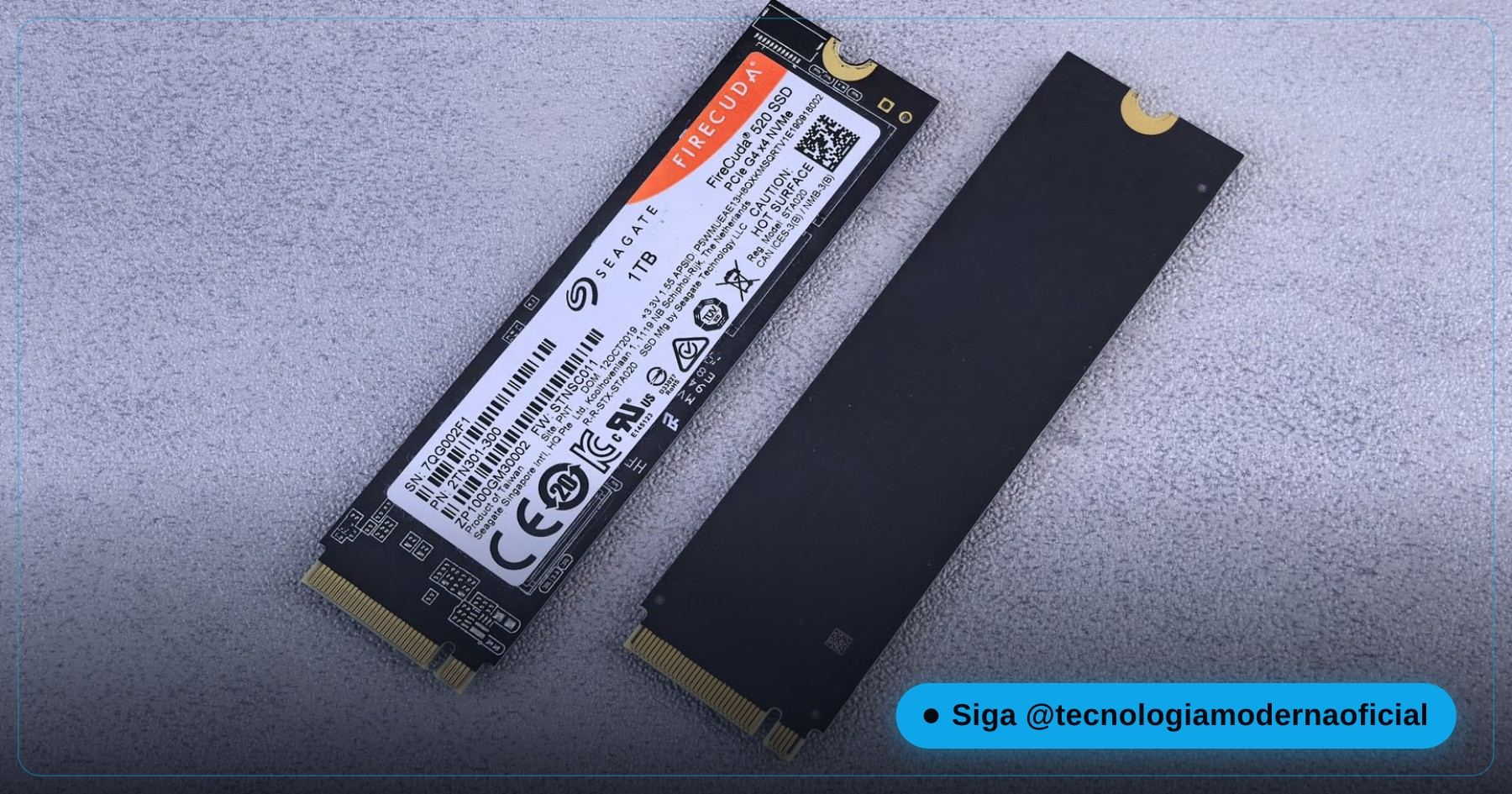
Before buying, check your motherboard or laptop manual for the M.2 slot type. Older laptops often have an M.2 slot that only supports SATA, even though the connector looks the same — an NVMe drive there either won’t work or won’t reach its speed.
⚖️ Hasleo vs. Other Cloning Tools
| Tool | Cost | Clones with Windows on? | Note |
|---|---|---|---|
| Hasleo Disk Clone | Free (personal) | Yes, via VSS | Simple interface, no account required. |
| Macrium Reflect | Paid (the free edition was discontinued) | Yes | Very solid, but no longer a free option for home users. |
| Clonezilla | Free, open-source | No — boots from a USB stick | Extremely robust, text-mode interface — see the Clonezilla guide. |
| EaseUS Todo Backup Free | Free (limited) / paid | Yes | The free version tends to limit advanced cloning features. |
If you only need to swap disks once and don’t want to deal with boot USB sticks or text screens, Hasleo is the most direct option.
♻️ What to Do With the Old Disk
- Secondary storage: format it (after confirming everything migrated) and use it for files, games or backups.
- Keep it as a “cold” backup for a few weeks: a safety net in case you realise you forgot something.
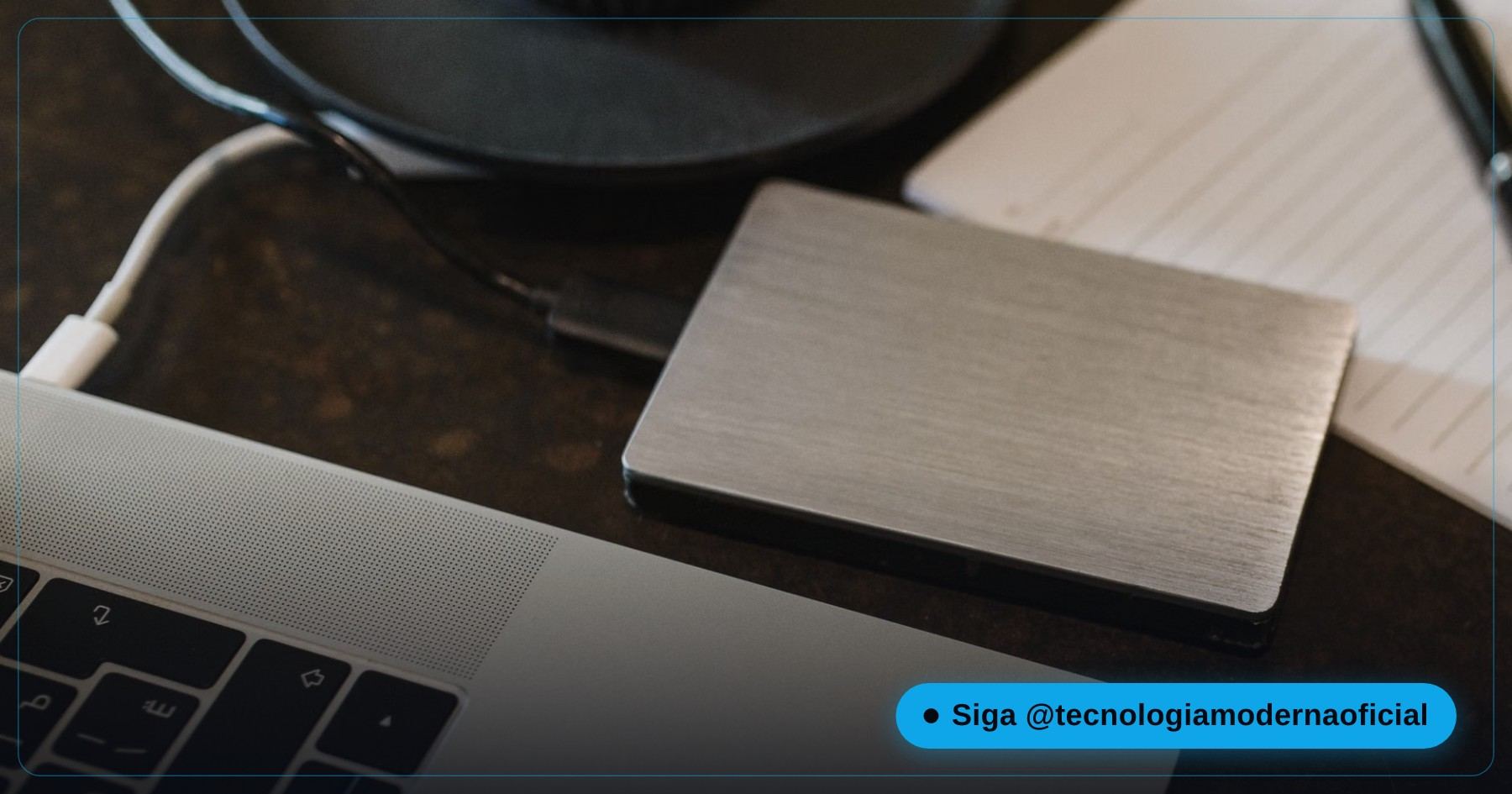
- External drive: a cheap USB enclosure turns it into a portable disk for extra backups.
- Sell or donate — safely: wipe it properly first, not just a quick format. See how to wipe an SSD or HDD securely before selling.
🔧 Common Errors During Cloning
| Problem | What to do |
|---|---|
| Hasleo says the target disk is too small | The data used on the source is larger than the new SSD. Free up space on the current disk or pick a bigger target. |
| PC doesn’t see the new SSD after the swap | Check the SATA cable or M.2 seating and confirm the Boot Priority in the BIOS/UEFI. |
| Blue screen (BSOD) right after booting from the new SSD | Usually the clone didn’t reach 100%. Repeat it from scratch with stable power throughout. |
| “Unallocated” space on the new SSD after cloning | Rare with Hasleo; if it happens, extend C: in Disk Management (diskmgmt.msc). |
🩺 Confirming the New SSD Is Healthy and Optimised
| Check | How |
|---|---|
| TRIM active | fsutil behavior query DisableDeleteNotify — a result of 0 means TRIM is on. |
| AHCI/NVMe mode | In Device Manager, check that the storage controller driver matches the drive (AHCI for SATA, NVMe for M.2 NVMe). |
| Overall health (S.M.A.R.T.) | Use a free tool like CrystalDiskInfo, or the 2-minute health test. |
| Real speed | Run a simple benchmark (such as CrystalDiskMark) and compare with the model’s specs. |
This few-minute check avoids discovering months later that the SSD was running in a slower compatibility mode, or that TRIM was never enabled after the migration.
FAQ
Is Hasleo Disk Clone really free?
Yes. For personal use, the free edition already includes full disk-to-disk cloning, with no paid licence.
Do I need to turn the PC off during cloning?
No. Hasleo uses Windows’ VSS service to clone while the system is in use — you only shut down after 100%, to swap the disks.
What if I forget to extend the C: partition on the new disk?
Usually there’s nothing to do: Hasleo detects the extra space and extends the main partition automatically during cloning.
Can I clone from a mechanical hard drive to an SSD?
Yes, the process is the same — it’s one of the most common uses, gaining speed without losing any file or program.
What is defrag /c /o for after the swap?
On SSDs it runs the optimisation that sends TRIM, so Windows frees the old blocks right away instead of waiting for the scheduled task.
Does cloning work between disks from different brands?
Yes. Hasleo copies the data structure regardless of manufacturer, as long as the target can hold all the data used on the source.
How do I know the TRIM is really active on my new SSD?
Open Command Prompt as administrator and run fsutil behavior query DisableDeleteNotify. A result of 0 confirms TRIM is enabled in the system.
Can I sell or donate my old SSD after cloning?
Yes, but wait a few weeks to confirm the new system is completely stable, and run a full secure wipe — not just a quick format — before handing the disk to someone else.
🎮 How much did you learn?
Once you pick an answer it locks in — reload the page to try again.
1. Which Windows service does Hasleo use to clone with the system running?
2. What happens to the C: partition on the target after cloning?
3. What is the defrag /c /o command for?
4. Why must the target hold the USED data, not just the nominal capacity?
5. After swapping the SSDs, what should you check in the BIOS/UEFI?
Esse conteúdo ajudou você?
Compartilha com alguém que também vai curtir — é rapidinho e ajuda muito o nosso trabalho a chegar em mais gente.
Conhecimento só tem valor quando compartilhado.
Manter essa estrutura de laboratórios funcionando e produzir conteúdos de engenharia de forma totalmente gratuita e acessível exige tempo e dedicação diária à bancada. Esse guia salvou os seus arquivos? Você pode contribuir diretamente para manter o nosso trabalho independente forte. Apoie doando qualquer valor!
Quer apoiar a nossa bancada independente?
[email protected]