How to Recover Deleted Files in Windows Without Third-Party Software (100% Free)
Formatted a USB stick or emptied the Recycle Bin by mistake? Forget commercial tools full of trial traps — use Microsoft’s own official (and little-known) recovery tool.
Windows File Recovery (WinFR) is Microsoft’s free, official tool for recovering deleted data:
- Download it from the Microsoft Store — 100% free, with no trial traps.
- Use /regular for recent deletions on NTFS, and /extensive for formatted disks and FAT32/exFAT.
- The command follows the pattern winfr [Source] [Destination] [Mode] [Filters].
- Source and destination must be different drives so you don’t overwrite the data.
- On SSDs, act fast: TRIM physically wipes the memory cells within a short time.
- Introduction
- Before WinFR: Three Places to Look First
- Downloading the Tool Safely
- Regular vs. Extensive: When to Use Each?
- Running the Recovery in the Command Prompt
- What Does Each Term Mean?
- How TRIM Affects SSDs
- What to Do (and Not Do) Before Running WinFR
- Other Common Recovery Scenarios
- WinFR vs. Third-Party Tools
- Common Errors When Using WinFR
- When WinFR Isn’t Enough (and It’s Time for a Specialist)
- Frequently Asked Questions
🌐 Windows File Recovery (WinFR), Explained
Formatted a USB stick or deleted important files from the Recycle Bin by mistake? Forget commercial software full of trial traps that stops the recovery as soon as you hit the data limit. Microsoft itself built a professional command-line solution, completely free, for exactly this problem.
Windows File Recovery works directly with the clusters of the file system (NTFS, FAT32 or exFAT), digging out the remaining blocks on the chip or on the magnetic disk without charging a single cent.
🗑️ Before WinFR: Three Places to Look First
Before any command, rule out the places where “deleted” files often still exist in one piece:
- Recycle Bin: obvious, but it’s worth searching it by name — files deleted with Delete (without Shift) go there first.
- OneDrive recycle bin: if the folder was synced, the web version at onedrive.live.com keeps its own recycle bin for up to 30 days (personal accounts).
- Previous Versions / File History: right-click the folder where the file was → Properties → Previous Versions. If File History or a restore point was active, an older copy may be listed.
If none of them has the file, then it’s time for WinFR — and the golden rule above applies more than ever.
📥 Downloading the Tool Safely
Unlike market software, Windows File Recovery is distributed exclusively through Microsoft’s official channel — no installers from third-party sites.
- Open the Microsoft Store and search for Windows File Recovery (publisher: Microsoft Corporation).
- Click Get — it’s free.
- After installing, open it from the Start menu: a terminal window opens (it’s a command-line tool) and asks for administrator permission.
The tool requires Windows 10 version 2004 or later, or Windows 11.
⚙️ Regular vs. Extensive: When to Use Each?
The utility uses scan algorithms split according to the state of your storage:
| Mode | Best for | Speed |
|---|---|---|
| /regular | Healthy NTFS disks where you just deleted the file recently and emptied the Recycle Bin — it relies on the file record table (MFT) | Very fast |
| /extensive | Drives that were fully formatted, disks that became RAW, or file systems like FAT32/exFAT (memory cards and USB sticks) | Slow — reads the whole disk |
Quick rule: file deleted recently from an NTFS drive in good condition → start with /regular. Anything else (formatting, corruption, cards, USB sticks, deleted a long time ago) → go straight to /extensive.
🖥️ Running the Recovery in the Command Prompt
Open your terminal (CMD or PowerShell) as Administrator. The standard structure follows this logic: winfr [Source_Drive] [Destination_Drive] [Mode] [Filters]. See real examples below:
# Example 1: recover spreadsheets (.xlsx) from a formatted USB stick (D:) saving them to the main disk (E:)
winfr D: E: /extensive /n *.xlsx

# Example 2: recover a whole deleted Documents folder from C: to drive D:
winfr C: D: /regular /n \Users\YourName\Documents\
At the end, WinFR creates a folder called Recovery_ followed by the date and time on the destination drive, with the recovered files keeping the original folder structure whenever possible.
🛠️ What Does Each Term Mean?
| Parameter | What it does |
|---|---|
winfr | The main command that launches Microsoft’s Windows File Recovery engine. |
D: E: | The logical paths. The first (D:) is your source drive (where the files vanished). The second (E:) is your destination drive (where recovered files are saved). They must be different drives, so the process doesn’t overwrite the deleted clusters themselves. |
/extensive | Deep scan mode. A thorough search at the raw sector level — the right algorithm for media that were fully formatted or that use older systems such as FAT32 and exFAT. |
/regular | Standard scan mode. A fast search based on the Windows MFT index — perfect for recently deleted files on a healthy NTFS disk, without reading the whole drive sector by sector. |
/n | Name filter. Tells the tool that the next piece of text is the search criterion or specific path. |
*.xlsx | Wildcard filter. The asterisk (*) accepts any file name, while .xlsx limits the scan to spreadsheets only. |
🔮 How TRIM Affects SSDs
A tip you won’t find on most blogs: recovery success depends directly on the physical type of storage.
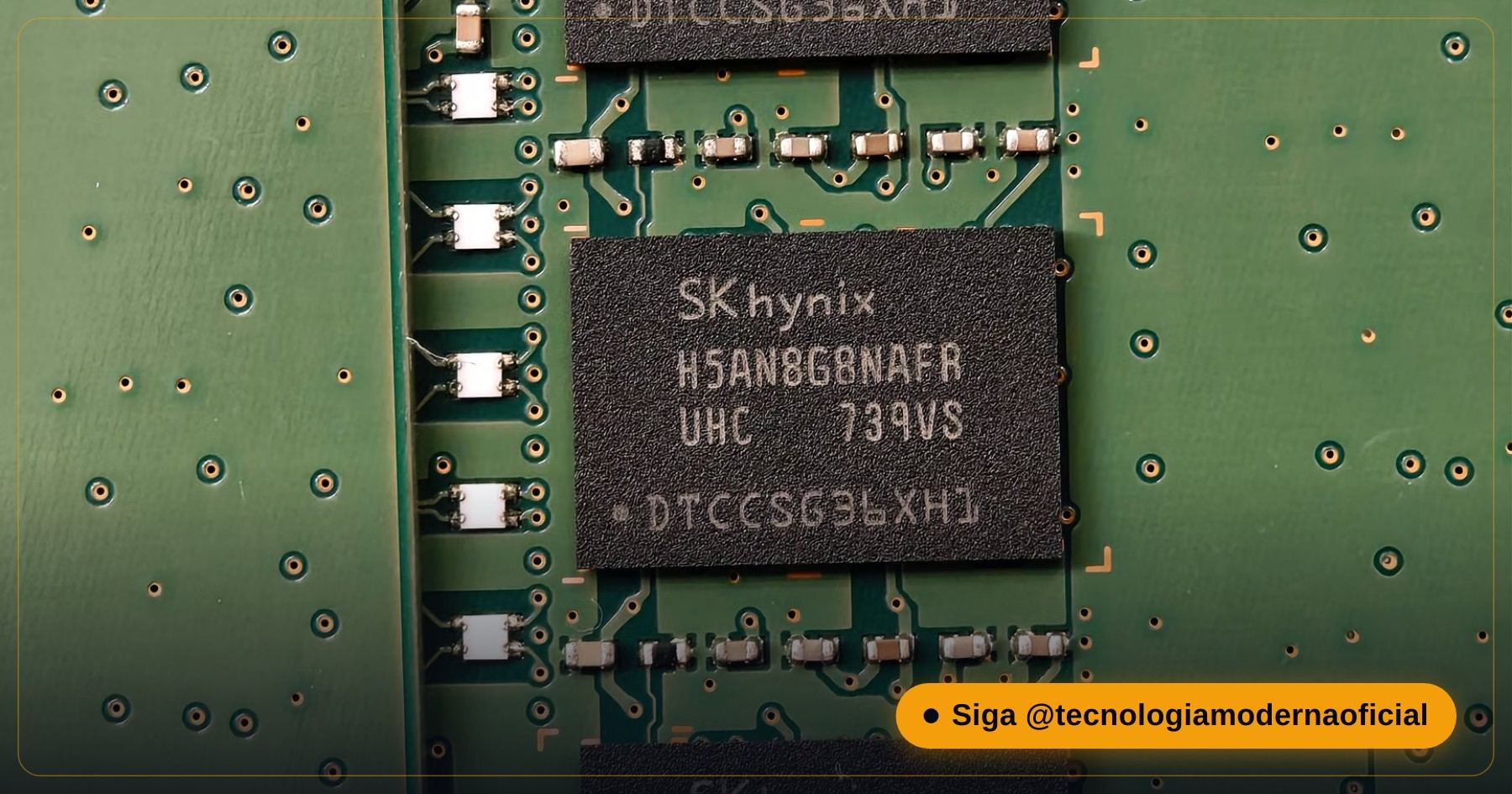
In practice, the window of opportunity on an SSD is much shorter than on a hard drive. While an HDD can keep files “recoverable” for months until they’re overwritten by chance, a healthy SSD can physically wipe that data within minutes or a few hours, depending on how often Windows schedules TRIM in the background. To check your SSD’s health, see the 2-minute test that reveals whether your SSD is dying.
✅ What to Do (and Not Do) Before Running WinFR
- Stop using the affected drive immediately: every new write is one less chance of getting the old file back.
- Never install WinFR on the drive where the data vanished if you can avoid it: the Store writes files during installation, which could overwrite exactly the blocks you want back.
- Always point the destination to a different disk: WinFR itself blocks saving to the same drive when the paths match, but double-check before running.
- Note the original file system (NTFS, FAT32 or exFAT): that already helps you choose between Regular and Extensive before the first test.
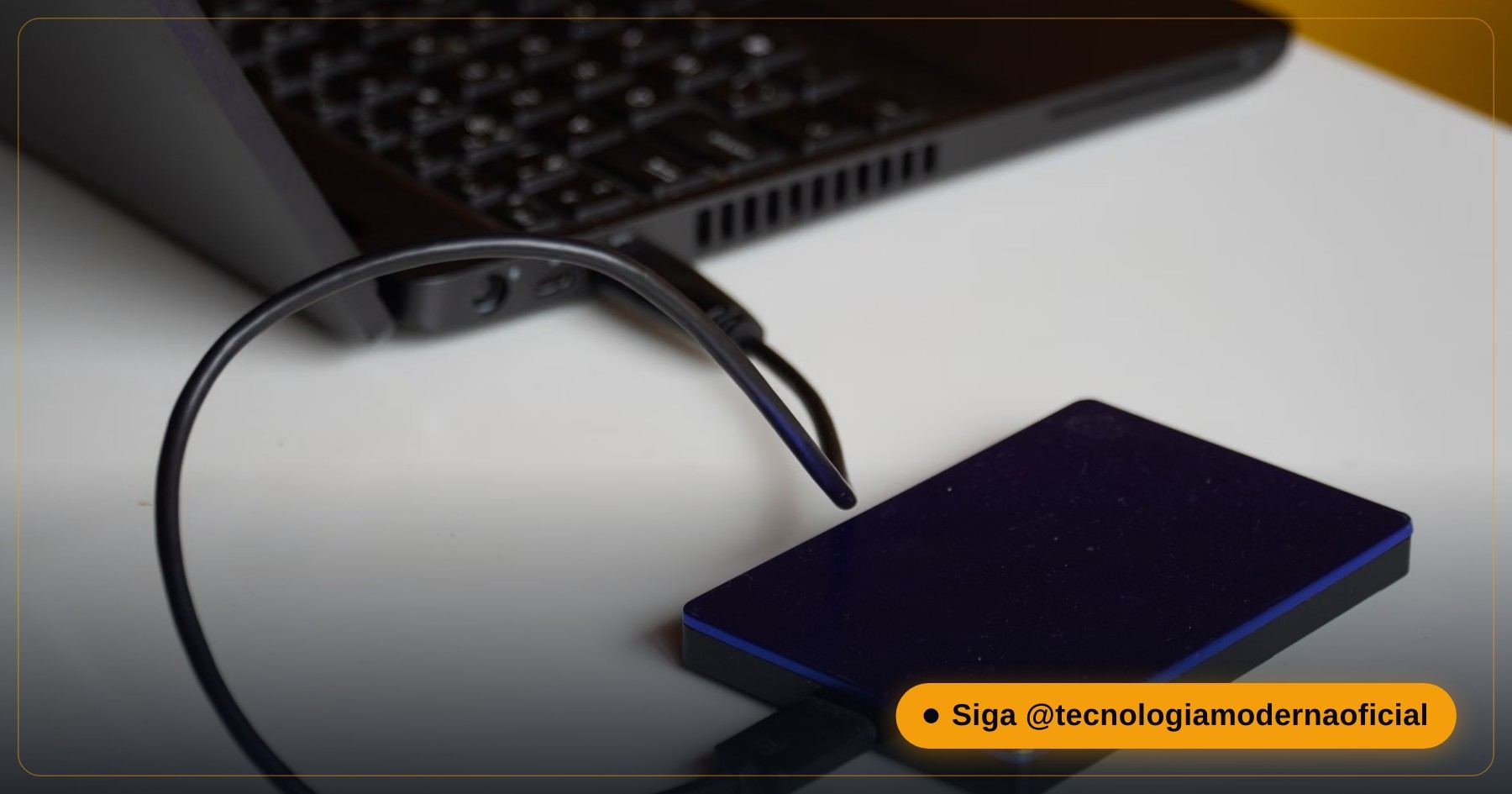
- Have a spare USB stick or external drive nearby: since the destination must differ from the source, a second device ready in advance saves time.
📂 Other Common Recovery Scenarios
| Scenario | Example command |
|---|---|
| Recover photos (.jpg, .png) from an SD card | winfr D: E: /extensive /n *.jpg /n *.png |
| Recover one specific file by name | winfr C: D: /regular /n \Users\YourName\Documents\report.docx |
| Recover videos (.mp4) from an SSD formatted as exFAT | winfr D: E: /extensive /n *.mp4 |
| Recover every PDF from a formatted external drive | winfr F: E: /extensive /n *.pdf |
Note that you can chain several /n filters in the same command, which saves time when you need more than one file type from the same scan, without restarting the process for each extension.
⚖️ WinFR vs. Third-Party Tools
| Tool | Cost | Interface | Note |
|---|---|---|---|
| Windows File Recovery | Free, no limits | Command line | Official Microsoft tool, no risk of adware or unwanted toolbars. |
| Recuva | Free (with a paid version) | Graphical, friendly | Good for beginners, but the free version tends to be slower on deep scans. |
| TestDisk / PhotoRec | Free, open-source | Command line (menus) | Extremely powerful for recovering whole partitions, with a steeper learning curve than WinFR. |
| Paid commercial software | Paid, usually with a limited trial | Graphical | The trial usually only shows that the files exist, and blocks recovery until you buy the full licence. |
For most everyday cases — a file deleted by accident, a formatted USB stick, a lost folder — Windows File Recovery does the job at no cost and without installing an unknown third-party program, which in itself reduces the security risk on your machine. If the whole disk became RAW, see also what to do when a disk or SSD turns RAW.
🔧 Common Errors When Using WinFR
| Error | What to do |
|---|---|
| “Source and destination cannot be the same drive” | WinFR blocks this by design. Plug in an external USB stick or use a different partition as the destination and run the command again. |
| The Extensive scan takes ages and seems frozen | Normal — Extensive reads the whole disk sector by sector. On large disks (1 TB+) it can take several hours; let it run without interrupting. |
| No files found even in Extensive mode | A sign that the clusters were already overwritten by continued use of the drive after the deletion. The sooner WinFR runs after the loss, the better the odds. |
| Recovered files are corrupted or won’t open | Common when part of the original clusters has been partially overwritten. Try other file types or, if possible, an older copy of the same document. |
🚨 When WinFR Isn’t Enough (and It’s Time for a Specialist)
Windows File Recovery is excellent for the most common scenario — accidental deletion, formatting by mistake, light logical corruption — but it works purely at software level. There are situations no tool running inside the operating system will solve:
- Physical mechanical failure: clicking or scraping noises, or a disk the BIOS/UEFI doesn’t detect at all, point to physical damage that needs a clean room and specialised lab tools.
- Encrypted disk without the recovery key: if the drive was protected by BitLocker and the key is lost, WinFR can’t “read through” the encryption — see where to find your BitLocker recovery key.
- Several failed attempts with other tools: each scan, especially Extensive, reads the disk hard and can, in rare cases, further degrade sectors on a drive that’s already physically failing.
- Data of very high commercial or legal value: when the cost of not recovering is very high, stop trying on your own and go to a specialised lab before any new attempt.
In these cases, the most important thing is not to insist repeatedly on your own. Write down what happened (when you noticed the loss, what you’ve tried) before handing the drive to a lab — it speeds up the initial diagnosis a lot. And to avoid going through this again, set up a Windows backup without installing anything.
FAQ
Is Windows File Recovery really free?
Yes. It’s an official Microsoft tool, distributed free through the Microsoft Store, with no limit on recovered data and no “trial” version.
What’s the difference between Regular and Extensive mode?
Regular is fast and ideal for recent deletions on healthy NTFS disks. Extensive performs a deep, sector-level scan, meant for formatted, corrupted (RAW) or FAT32/exFAT drives.
Why must the destination be different from the source?
So that the recovery itself doesn’t overwrite the clusters that still hold the data you’re trying to rescue.
Does WinFR work on SSDs?
Yes, but with a shorter time window. SSDs run TRIM periodically, which physically wipes deleted memory cells — so the sooner you act, the better your chances.
Do I need to know the command line to recover my files?
Only the basics — the syntax is simple. Following the examples in this guide (source, destination, mode and filter), anyone can build the right command in a few minutes.
Can WinFR recover files from a hard drive making strange noises?
Not recommended. Unusual noises (clicks, scraping) indicate physical mechanical failure, and continuing to use the disk only makes the damage worse. Turn it off and look for a professional recovery service.
Is there a file size limit for WinFR?
The tool imposes no artificial limit. What decides success is whether the file’s clusters have not yet been overwritten by new data, regardless of the original size.
🎮 How much did you learn?
Once you pick an answer it locks in — reload the page to try again.
1. Who developed Windows File Recovery?
2. When should you use Extensive mode?
3. What does the /n parameter do in the winfr command?
4. Why is TRIM a problem for data recovery on SSDs?
5. Can the source and destination drives be the same?
Esse conteúdo ajudou você?
Compartilha com alguém que também vai curtir — é rapidinho e ajuda muito o nosso trabalho a chegar em mais gente.
Conhecimento só tem valor quando compartilhado.
Manter essa estrutura de laboratórios funcionando e produzir conteúdos de engenharia de forma totalmente gratuita e acessível exige tempo e dedicação diária à bancada. Esse guia salvou os seus arquivos? Você pode contribuir diretamente para manter o nosso trabalho independente forte. Apoie doando qualquer valor!
Quer apoiar a nossa bancada independente?
[email protected]