Onboard vs Dedicated: How Motherboards Work Today — Slots, PCIe, M.2 and How to Choose
What “onboard” really means today, why integrated graphics depend on the processor, PCIe, M.2, DDR4 vs DDR5, chipsets and the commands to find out what’s inside your PC.
Straight to the point:
- Onboard = a built-in feature (graphics, audio, network); dedicated = a separate card in a slot. Almost every motherboard now includes audio and networking.
- Integrated graphics depend on the processor, not just the board: Intel chips ending in F and older Ryzen chips without a G have no graphics — the board’s HDMI ports show nothing.
- Have a dedicated graphics card? Plug the monitor into it, not into the motherboard.
- Speed today is defined by PCIe (3.0, 4.0, 5.0) and M.2 NVMe — the old FSB no longer exists.
- Find your motherboard model with
Get-CimInstance Win32_BaseBoardin PowerShell.
- Introduction
- Onboard and Dedicated: What They Mean Today
- Integrated Graphics Depend on the Processor
- Where to Plug In the Monitor (and Why It Matters)
- Find Your Motherboard in 1 Minute
- Expansion Slots: PCIe (and the Old PCI)
- SATA, M.2 SATA and M.2 NVMe: Not All the Same
- Memory Slots: DDR4, DDR5 and Dual Channel
- Buses: What Happened to the FSB
- Chipset: What It Defines
- USB, BIOS and Other Board Features
- Form Factor: ATX, Micro-ATX and Mini-ITX
- Comparison Table: Integrated vs Dedicated Graphics
- How to Choose the Right Motherboard
- Common Mistakes When Choosing
- Signs Your Motherboard Is Holding You Back
- Care and Maintenance
- Alternatives Table
- Quick Glossary
- Frequently Asked Questions
🔧 Why the Motherboard Matters So Much
The motherboard is where everything connects: processor, memory, storage, graphics card, USB ports, network and audio. It doesn’t make the computer faster on its own, but it defines what you can install, how much you can grow and how long the PC will last before it needs a major overhaul.
When someone asks whether to buy an “onboard” or a “dedicated” setup, they’re usually trying to answer a simpler question: do I need a separate graphics card or not? In this guide you’ll learn what these terms mean today, what changed in recent years and how to choose without falling into the most common mistakes.
⚖️ Onboard and Dedicated: What They Mean Today
Onboard (or “integrated”) is any feature that already comes on the motherboard or in the processor: graphics, audio, wired networking and, on many models, Wi-Fi and Bluetooth. Dedicated (sometimes called “off-board”) is a separate card plugged into a slot that does the same job with more capability — the graphics card is the classic example.
Years ago, some motherboards shipped without audio, network or graphics, and you bought everything separately. That’s basically over. Today, integrated audio and networking come on almost every desktop motherboard, with enough quality for most people. So, in practice, the question has changed:
| Feature | Is integrated (onboard) enough? | When a dedicated card is worth it |
|---|---|---|
| Audio | Yes, for almost everyone | Music production, professional recording |
| Wired network | Yes (1 to 2.5 Gbps is common) | 10 Gbps networks or specific needs |
| Wi-Fi/Bluetooth | Only if the board has it (not all do) | Board without Wi-Fi: PCIe or USB adapter |
| Graphics | Office work, study, videos, light games | Modern games, video editing, 3D, local AI |
Want to understand what each chip processes? See the difference between CPU and GPU. And if networking is your question, there’s a guide on how to choose a network card.
🎮 Integrated Graphics Depend on the Processor
Here’s the point most guides don’t explain: in current PCs, the integrated graphics chip lives inside the processor, not on the motherboard. The board only provides the outputs (HDMI, DisplayPort). If the processor has no graphics, those outputs show no picture at all — and the PC seems “not to turn on”.
| Processor | Integrated graphics? | Example |
|---|---|---|
| Intel ending in F or KF | ❌ No | Core i5-12400F, Core i7-14700KF |
| Intel without F | ✅ Yes | Core i5-12400, Core i7-14700K |
| AMD Ryzen 1000 to 5000 without G | ❌ No | Ryzen 5 3600, Ryzen 5 5600X |
| AMD Ryzen ending in G | ✅ Yes | Ryzen 5 5600G, Ryzen 5 8600G |
| AMD Ryzen 7000 and 9000 (AM5) without F | ✅ Yes, basic | Ryzen 5 7600, Ryzen 7 9700X |
| AMD Ryzen ending in F | ❌ No | Ryzen 5 7500F |
Laptops follow a similar logic: almost all have integrated graphics, and some also have a dedicated GPU that kicks in for games. I explain it in dedicated vs integrated graphics on laptops.
🖥️ Where to Plug In the Monitor (and Why It Matters)
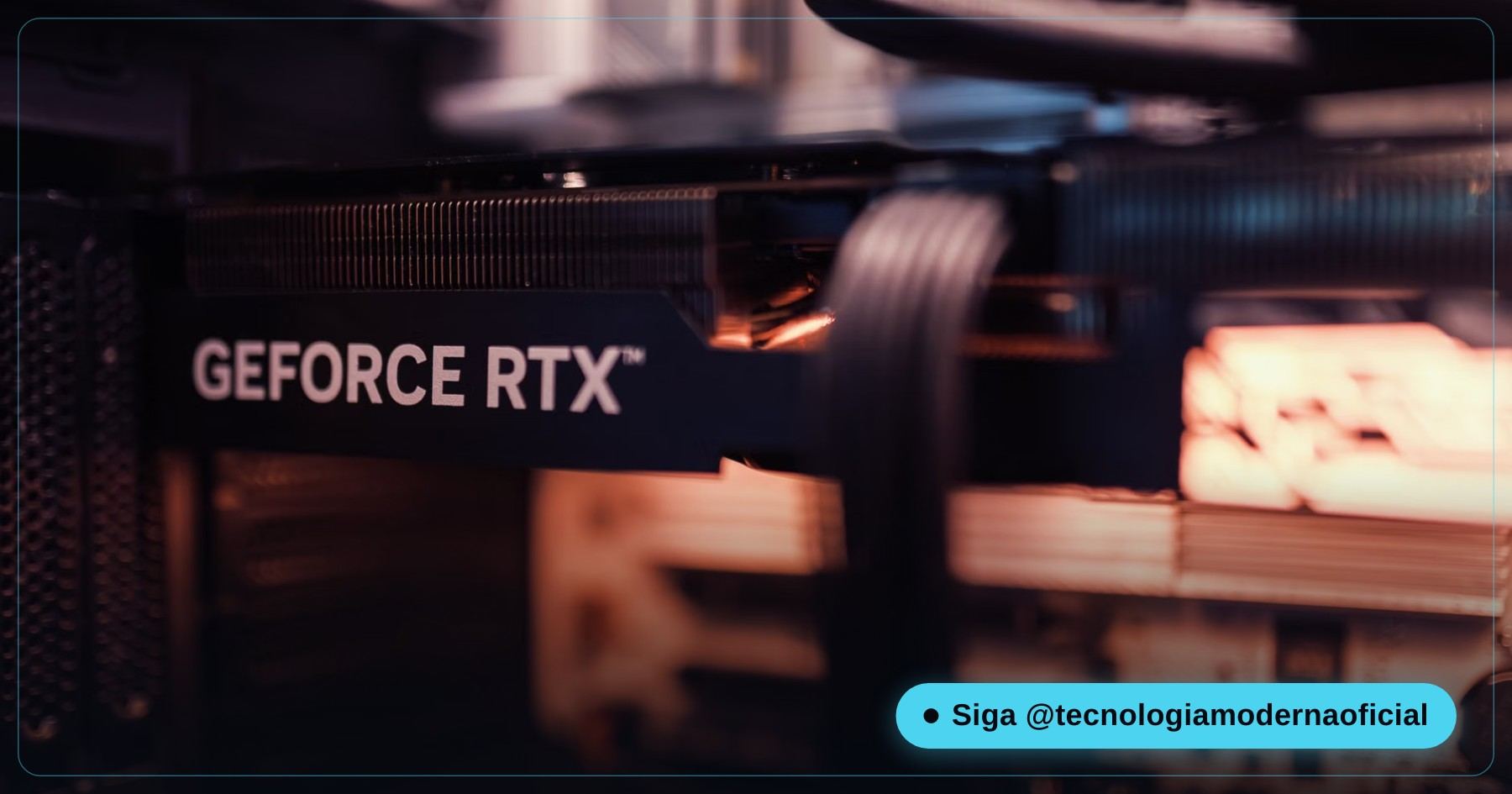
If your PC has a dedicated graphics card, the monitor cable must go into the graphics card’s outputs — the ones lower down, laid out horizontally at the back of the case. The outputs higher up, next to the USB ports, belong to the motherboard.
- Monitor on the motherboard with a processor without graphics: black screen, it looks like the PC won’t start.
- Monitor on the motherboard with a processor that has graphics: it works, but games run on the much weaker integrated graphics — and the card you paid for sits idle.
It’s one of the most common mistakes among people who just built or bought a gaming PC. To understand what separates a gaming PC from a regular one, see the difference between a gaming and a regular computer.
🔎 Find Your Motherboard in 1 Minute
Open PowerShell (Start menu → type PowerShell) and run the commands below. None of them changes anything; they only display information.
| What you want to know | Command |
|---|---|
| Motherboard maker and model | Get-CimInstance Win32_BaseBoard | Select-Object Manufacturer, Product, Version |
| Which processor you have | Get-CimInstance Win32_Processor | Select-Object Name |
| Which graphics the PC has (integrated and dedicated) | Get-CimInstance Win32_VideoController | Select-Object Name |
| Installed memory, speed and type | Get-CimInstance Win32_PhysicalMemory | Select-Object Manufacturer, Capacity, Speed, SMBIOSMemoryType |
| How many memory slots there are | Get-CimInstance Win32_PhysicalMemoryArray | Select-Object MemoryDevices |
In the memory result, SMBIOSMemoryType tells you the type: 24 = DDR3, 26 = DDR4 and 34 = DDR5. Capacity is shown in bytes (8589934592 = 8 GB). With the board model in hand, look up the manual on the manufacturer’s website: it lists the memory limit, the M.2 slots and which processors are supported.
Prefer a window to a command? Run msinfo32: the System Summary screen shows “BaseBoard Manufacturer” and “BaseBoard Product”. For a full x-ray, including temperatures, see the advanced diagnostics with HWiNFO.
🔌 Expansion Slots: PCIe (and the Old PCI)
PCIe (PCI Express) is the standard for every modern expansion slot. It’s split into lanes: an x16 slot has 16 lanes and is the one for the graphics card; x4 is typical for NVMe SSDs; x1 is for network, Wi-Fi and capture cards. The old PCI slot mentioned in older guides has practically disappeared from current motherboards.
| Generation | Speed per lane (approx.) | x16 slot (approx.) | Where you’ll find it |
|---|---|---|---|
| PCIe 3.0 | 1 GB/s | 16 GB/s | Boards from 2015 to 2020 |
| PCIe 4.0 | 2 GB/s | 32 GB/s | Boards from 2019/2021 on |
| PCIe 5.0 | 4 GB/s | 64 GB/s | Current high-end boards |
The generations are compatible with each other: a PCIe 4.0 graphics card works in a 3.0 slot, just limited to the lower speed. In practice, the difference is usually small for graphics cards; for NVMe SSDs, it shows up in speed tests.
💾 SATA, M.2 SATA and M.2 NVMe: Not All the Same
| Connection | Real speed (approx.) | Note |
|---|---|---|
| SATA III (cable) | up to 550 MB/s | Hard drives and 2.5-inch SSDs |
| M.2 SATA | up to 550 MB/s | Same shape as NVMe, but SATA speed |
| M.2 NVMe PCIe 3.0 | up to 3,500 MB/s | Very common and great value |
| M.2 NVMe PCIe 4.0 | up to 7,000 MB/s | Standard on current boards |
| M.2 NVMe PCIe 5.0 | above 10,000 MB/s | Runs hotter, needs a heatsink |
The M.2 connector looks the same, but not every M.2 slot accepts both types: some only take NVMe, others only SATA. And on many boards, using an M.2 slot disables one or two SATA ports, because they share the same lanes — it’s in the manual, and it’s a common reason for “my hard drive disappeared” after installing an SSD.
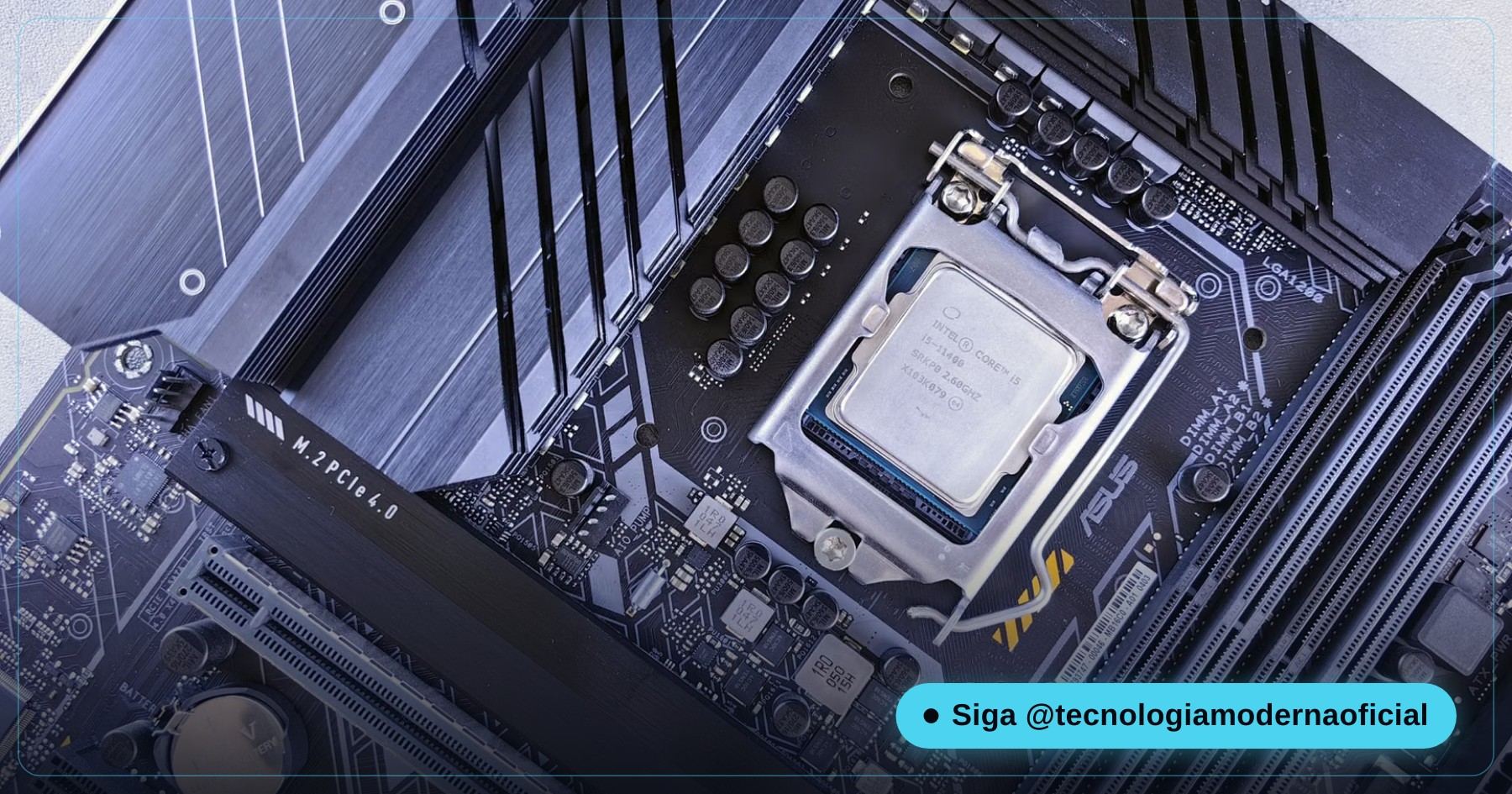
To understand the differences in depth, see HDD vs SSD vs NVMe and what NVMe is. The fastest NVMe drives run hot: see when to use an NVMe heatsink.
🧠 Memory Slots: DDR4, DDR5 and Dual Channel
Each motherboard accepts only one type of memory: DDR4 or DDR5 (on older PCs, DDR3). They have different notches and are not compatible — a DDR4 stick won’t fit a DDR5 slot. That’s why moving to a new platform almost always means replacing the memory too. I explain whether it’s worth it in DDR4 vs DDR5.
- Dual channel: two identical sticks perform better than a single stick of the same total size (2 × 8 GB beats 1 × 16 GB). Use the slots shown in the manual — on 4-slot boards, usually the 2nd and 4th.
- Capacity limit: every board has a maximum (e.g. 64, 128 or 192 GB). Check the manual before buying.
- XMP/EXPO profile: memory ships running at a lower speed; the XMP (Intel) or EXPO (AMD) profile, enabled in the BIOS, turns on the speed advertised on the stick.
If you’re wondering whether your PC is short on memory, see how RAM works.
⚡ Buses: What Happened to the FSB
Older guides talk about the FSB (Front Side Bus), the bus that connected the processor to memory through the motherboard. It was a major bottleneck — and that’s why it was retired.
| Period | How the processor talked to memory |
|---|---|
| Until ~2008 | Through the FSB, via a chip on the motherboard (the “northbridge”) |
| AMD from 2003, Intel from 2008 | The memory controller moved inside the processor, with a direct link |
| Today | Memory wired straight to the CPU; the processor talks to the chipset over a dedicated link (DMI on Intel, PCIe on AMD) |
That’s why, today, memory speed depends mainly on the processor and the memory type, and the speed of cards and SSDs depends on PCIe. If you have a very old PC and are thinking about modernizing it, see the real-world example of a motherboard, memory and NVMe upgrade.
🏗️ Chipset: What It Defines
The chipset is the motherboard chip that handles the extra connections: USB ports, SATA, some M.2 and PCIe slots. Two boards with the same socket can have very different chipsets — and that changes what you can do.
| Tier | Intel (examples) | AMD (examples) | Who it’s for |
|---|---|---|---|
| Entry | H610, H810 | A520, A620 | Basic use; no overclocking; fewer ports and slots |
| Mid-range | B760, B860 | B550, B650, B850 | The best value for most people |
| High-end | Z790, Z890 | X570, X670, X870 | Overclocking (on Intel, only with K processors), more M.2 and USB |
On AMD, B and X chipsets allow overclocking; on Intel, only the Z line, and only with processors ending in K. To pick the processor that goes with it, see the AMD vs Intel comparison.
🔗 USB, BIOS and Other Board Features
USB names have changed several times, which is confusing when shopping:
| Current name | Old name | Speed |
|---|---|---|
| USB 2.0 | — | 480 Mbps |
| USB 3.2 Gen 1 | USB 3.0 / USB 3.1 Gen 1 | 5 Gbps |
| USB 3.2 Gen 2 | USB 3.1 Gen 2 | 10 Gbps |
| USB 3.2 Gen 2×2 | — | 20 Gbps |
| USB4 | — | 40 Gbps (80 Gbps on USB4 2.0) |
The whole mess is explained in the USB naming confusion. Besides the ports, pay attention to:
- BIOS/UEFI: the firmware that starts the PC and stores its settings. An update may be needed to support newer processors — see how to update the BIOS safely.
- Wi-Fi and Bluetooth: boards with “WIFI” in the name include them; others need an adapter.
- Internal headers: how many fan and front-USB connectors your case will need.
📐 Form Factor: ATX, Micro-ATX and Mini-ITX
| Form factor | Size | Typical memory slots | Best for |
|---|---|---|---|
| ATX | 305 × 244 mm | 4 | Full-size PCs, more slots and M.2 |
| Micro-ATX | 244 × 244 mm | 2 or 4 | Balance of size, expansion and price |
| Mini-ITX | 170 × 170 mm | 2 | Compact and living-room PCs |
Form factor is independent of built-in features: there are Mini-ITX boards with Wi-Fi and a great chipset, and basic ATX boards. What it defines is which case fits and how much you can install. ATX cases accept the smaller boards; not the other way around.
📊 Comparison Table: Integrated vs Dedicated Graphics
| Criterion | Integrated graphics (onboard) | Dedicated graphics card |
|---|---|---|
| Cost | Comes with the processor | From a couple hundred to several thousand dollars |
| Power and heat | Low | Higher — may require a stronger power supply |
| Gaming | Light and older games, low resolution | Current games, high frame rates |
| Video editing and 3D | Basic | Much faster |
| Local AI | Limited | Much better, especially with more video memory |
| Upgrading | Only by changing the processor | Replace just the card |
Adding a dedicated card? Check first that your power supply can handle it: how to calculate power supply wattage.
🎯 How to Choose the Right Motherboard
- Pick the processor first. It defines the socket (e.g. LGA 1700 and LGA 1851 for Intel; AM4 and AM5 for AMD) and whether you’ll have integrated graphics.
- Check the memory type the board takes (DDR4 or DDR5) and the maximum capacity.
- Count the M.2 slots and see which are PCIe 4.0 or 5.0 and which disable SATA ports.
- Choose the chipset for what you really need — the mid-range tier covers most people.
- Check the size (ATX, Micro-ATX, Mini-ITX) against your case.
- Look at the CPU support list on the manufacturer’s website — and whether the BIOS needs an update to recognize yours.
Want to see a complete build in practice? Check out the build guide with a motherboard kit and NVMe.
🚫 Common Mistakes When Choosing
| Mistake | What happens | How to avoid it |
|---|---|---|
| Processor without graphics and no dedicated card | The PC turns on, but no picture | Check whether the model ends in F (Intel) or lacks a G (older Ryzen) |
| Monitor plugged into the motherboard | Black screen or games running on weak graphics | Plug the cable into the graphics card |
| Wrong socket | The processor doesn’t fit | Check the socket on both sides before buying |
| Wrong memory type | The stick doesn’t fit | DDR4 and DDR5 don’t mix |
| Board too big for the case | It won’t close or mount | Check the form factor |
| Old BIOS | The PC won’t start with a new processor | Check the minimum BIOS version on the support list |
⚠️ Signs Your Motherboard Is Holding You Back
| Sign | What to do |
|---|---|
| No M.2 slot, or SATA only | An NVMe SSD on a PCIe adapter may help; on very old boards, booting from NVMe may not work |
| Low memory limit | Confirm the maximum in the manual before buying more memory |
| Few fast USB ports | A hub or a PCIe USB card solves it without replacing the board |
| Socket with no newer processors | To move to a new processor generation, replacing the board is mandatory |
| Freezes, reboots and failing ports | It may be a fault — see signs of a faulty motherboard |
On a tight budget, used server processors can deliver — with caveats. See whether a Xeon processor is worth it for a home PC.
🛠️ Care and Maintenance
- Cleaning: dust on heatsinks and slots hurts airflow. Use compressed air every 3 to 6 months, with the PC unplugged.
- Static electricity: touch a metal part of the case before handling components. Understand the real risk in static electricity: fact or myth.
- BIOS: update only for a reason (new processor, bug fix) and never let the update be interrupted.
- VRM temperature: the heatsinks near the socket get hot with powerful processors; a well-ventilated case helps.
- CR2032 battery: if the date and time reset by themselves or the BIOS loses its settings, replace the battery — it’s cheap and easy.
🔁 Alternatives Table
| If it doesn’t work… | Alternative | Note |
|---|---|---|
Get-CimInstance Win32_BaseBoard | Select-Object Manufacturer, Product | wmic baseboard get product,manufacturer | WMIC is removed by default in Windows 11 24H2; reinstall it from Optional features if needed |
| Any PowerShell command | msinfo32 | System Summary: baseboard, processor and memory |
Get-CimInstance Win32_VideoController | Select-Object Name | dxdiag | The Display tab shows the graphics chip in use |
Get-CimInstance Win32_PhysicalMemory | Task Manager → Performance → Memory | Shows slots used, speed and type |
| None of these opens | Label on the motherboard | The model is printed on the board, usually between the slots |
📖 Quick Glossary
| Term | Meaning |
|---|---|
| Onboard / integrated | A feature that comes on the motherboard or in the processor |
| Dedicated / off-board | A separate card installed in a slot |
| Socket | The processor connector; defines which processors the board accepts |
| Chipset | Board chip that handles USB, SATA and some of the slots |
| PCIe | Standard for expansion slots and NVMe, split into lanes and generations |
| M.2 | SSD connector format; can be SATA or NVMe |
| NVMe | SSD protocol that uses PCIe; much faster than SATA |
| FSB | Old bus between CPU and memory, retired around 2008 |
| XMP / EXPO | Memory profiles that enable the advertised speed |
| BIOS / UEFI | Firmware that starts the PC and stores its settings |
FAQ
What’s the difference between onboard and dedicated?
Onboard is a built-in feature, such as graphics, audio and networking. Dedicated is a separate card installed in a slot. Almost every motherboard now includes audio and networking; the big difference is graphics.
Does every motherboard with an HDMI port have integrated graphics?
No. The motherboard’s outputs only work if the processor has integrated graphics. Intel chips ending in F and older Ryzen chips without a G don’t, and the outputs show nothing.
Where should I plug in the monitor if I have a graphics card?
Into the graphics card’s outputs, lower down at the back of the case. Plugging into the motherboard leaves the screen black or makes games run on the integrated graphics.
Are integrated graphics good enough for gaming?
They’re fine for light or older games at low resolution. For current games at good quality, you need a dedicated graphics card.
Are PCIe 3.0, 4.0 and 5.0 compatible?
Yes. Any card or SSD works in another generation, but limited to the speed of the older of the two.
Can I use DDR4 memory on a DDR5 motherboard?
No. DDR4 and DDR5 have different notches and are not compatible. Each motherboard accepts a single type.
How do I find my motherboard model?
In PowerShell, run Get-CimInstance Win32_BaseBoard | Select-Object Manufacturer, Product. You can also see it in msinfo32, on the System Summary screen.
Does the FSB still matter when choosing?
No. The FSB was replaced around 2008, when the memory controller moved inside the processor. Today what matters is PCIe, the memory type and the chipset.
🎮 How much did you learn?
Once you pick an answer it locks in — reload the page to try again.
1. What happens to the motherboard’s HDMI ports if the processor has no integrated graphics?
2. Which of these processors has NO integrated graphics?
3. Where do you plug the monitor on a PC with a dedicated graphics card?
4. Which connection is the fastest?
5. Does a DDR4 stick work on a DDR5 motherboard?
Esse conteúdo ajudou você?
Compartilha com alguém que também vai curtir — é rapidinho e ajuda muito o nosso trabalho a chegar em mais gente.
Conhecimento só tem valor quando compartilhado.
Manter essa estrutura de laboratórios funcionando e produzir conteúdos de engenharia de forma totalmente gratuita e acessível exige tempo e dedicação diária à bancada. Esse guia salvou os seus arquivos? Você pode contribuir diretamente para manter o nosso trabalho independente forte. Apoie doando qualquer valor!
Quer apoiar a nossa bancada independente?
[email protected]