How to Create an Encrypted Vault on Your PC With VeraCrypt (and Truly Protect Your Files)
Hidden folders and .bat tricks don’t protect anything. Learn to create a real encrypted vault with VeraCrypt — free, open-source and using the same AES-256 standard trusted by governments and banks.
Home-made tricks (hidden folder, .bat) protect nothing. VeraCrypt creates a genuinely encrypted vault:
- Always download from the official site veracrypt.io — never from third-party portals.
- A file container works like a virtual drive: readable with the password, pure noise without it.
- Use passwords of 24+ characters generated by a trusted tool and stored in a password manager.
- AES-256 alone is already extremely secure for everyday use; cascades are optional.
- Forget the password and the data is gone for good — there’s no recovery, by design.
- Introduction
- Safe Download, Straight From the Source
- Why “Home-Made Tricks” Protect Nothing
- File Container vs. Whole Partition or USB Drive
- Creating Your First Container Step by Step
- Hidden Volumes and Plausible Deniability
- Strong Passwords: the Real Key to the Vault
- Cascade Encryption (AES-Twofish-Serpent)
- Who Actually Needs This?
- Essential Care for Your Vault
- Frequently Asked Questions
🔒 A Real Vault for Your Files
Welcome to another digital survival guide. The goal here is to protect your online life with professional tools instead of amateur tricks. Today we’ll use strong encryption to keep your valuable files away from prying eyes — whether your laptop is stolen, your USB stick is lost or someone else simply uses your PC.
That hidden folder or the .bat trick? A curious person gets past them in ten seconds. VeraCrypt works differently: it doesn’t hide anything visually — it turns your data into unreadable mathematical noise without the correct key, using AES-256, the same standard approved for classified government information and used by banks worldwide.
⚡ Safe Download, Straight From the Source
The golden rule: never download encryption software from random download portals. Go straight to the official source to be sure the installer is authentic:
1. Go to the official site: veracrypt.io
2. Click "Downloads" in the top menu
3. Download the installer (.exe) for Windows
4. Follow the standard wizard (Next > Install)
Why does this matter so much for encryption software specifically? A tampered installer of an ordinary program might install annoying adware. A tampered installer of an encryption program could weaken the very protection you’re relying on — without you ever knowing. That’s why serious security projects publish digital signatures and hashes, so anyone can verify the download before installing.
❌ Why “Home-Made Tricks” Protect Nothing
| Trick | Why it fails |
|---|---|
| Folder with the “Hidden” attribute | Tick “Show hidden files” in File Explorer and everything appears. It’s a cosmetic attribute, not encryption. |
| Renaming the extension (.zip to .mp3) | Programs identify files by their content, not their name. The real content opens in seconds. |
| .bat file that “hides” a folder | It’s just a system/hidden attribute command in disguise, reversed by the opposite command — no real password involved. |
| Zip file with a short password | Better than the above, but short passwords on common archives are vulnerable to freely available brute-force tools. |
VeraCrypt solves this at the root: without the correct key, the content is indistinguishable from random data.
📦 File Container vs. Whole Partition or USB Drive
| Volume type | When to use it | Advantage |
|---|---|---|
| File container (.hc) | Protecting a specific set of documents, photos or projects | It can be copied, moved and even stored in the cloud like any file |
| Whole partition | Encrypting an entire secondary drive dedicated to sensitive data | No container file — the whole drive is protected |
| USB stick / external drive | Carrying sensitive data between computers | Even if the stick is lost or stolen, the data stays unreadable |
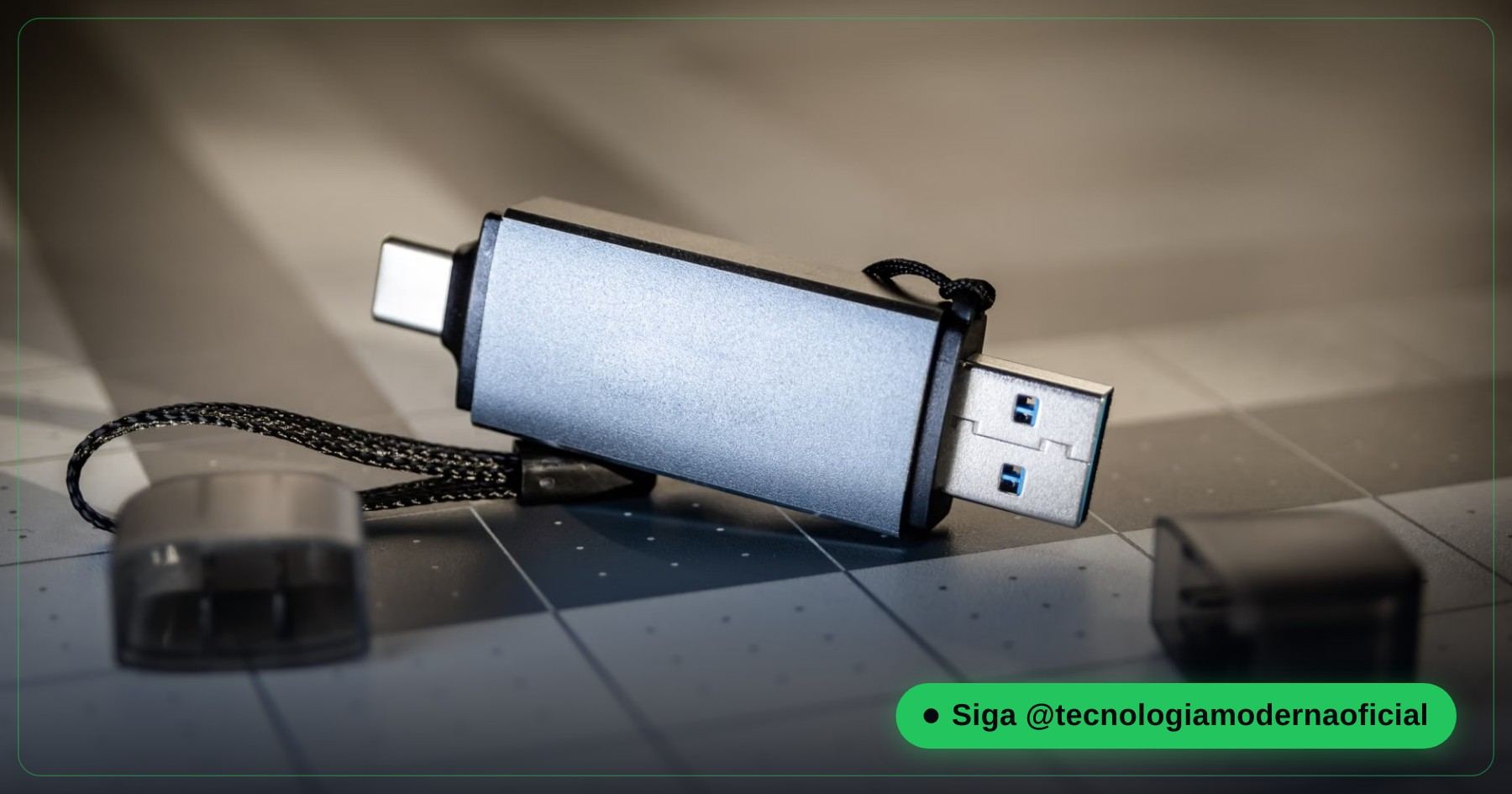
For most people starting out, the file container is the most practical choice: you create a single file (say, 20 GB) that behaves like a virtual drive when mounted with the right password, and like an unreadable file when closed.
🛠️ Creating Your First Container Step by Step
- Open VeraCrypt and click Create Volume.
- Choose Create an encrypted file container → Standard VeraCrypt volume.
- Click Select File, choose a folder and type a name for the container (don’t pick an existing file — it would be replaced).
- Encryption: leave AES with SHA-512 — the recommended default.
- Set the size (for example 20 GB) — it can’t be enlarged easily later, so leave some room.
- Enter a strong password (see the password section below).
- Move the mouse randomly inside the window to strengthen the key, then click Format.
To use it: in the main window, pick a free drive letter, click Select File, choose your container, click Mount and type the password. A new drive appears in File Explorer. When you’re done, click Dismount.
🎭 Hidden Volumes and Plausible Deniability
VeraCrypt can also create a hidden volume inside another volume. You end up with two passwords: one opens an outer volume with ordinary files, the other opens the hidden volume inside it.
1. Click "Create Volume"
2. Select "Hidden VeraCrypt volume"
3. Follow the wizard to create the outer volume first, then the hidden one
This works because VeraCrypt fills the free space of every encrypted volume with random data, which is indistinguishable from a hidden volume. The official documentation calls this plausible deniability, and it was designed for people at real risk — journalists protecting sources, or travellers whose devices may be inspected.
🔑 Strong Passwords: the Real Key to the Vault
Encryption is only as strong as the password. VeraCrypt recommends long passwords — we suggest 24 characters or more, mixing A-Z, a-z, 0-9 and symbols. Don’t use a password you already use elsewhere.
Generate it with a trustworthy tool — our free secure password generator runs entirely in your browser — and save it in a password manager such as Bitwarden.
🛡️ Cascade Encryption (AES-Twofish-Serpent)
AES-256 on its own is already extremely secure. For those who want an extra margin, VeraCrypt offers cascades: when choosing the Encryption Algorithm, select AES(Twofish(Serpent)) and your data is encrypted with three algorithms in sequence.
The cost is performance: opening and writing to the vault becomes slower, noticeable on modest machines. For the vast majority of users, AES alone is more than enough — the cascade is for those who want the maximum margin and accept the speed trade-off.
💼 Who Actually Needs This?
- Freelancers and small businesses: contracts, invoices and customer data protected against loss or theft of the work laptop.
- Professionals handling third-party data: lawyers, accountants and health professionals storing confidential documents.
- Frequent travellers: laptops and USB sticks get lost more often than we’d like.
- Anyone with personal document backups: scanned IDs, deeds and financial records deserve more than a folder on the desktop.
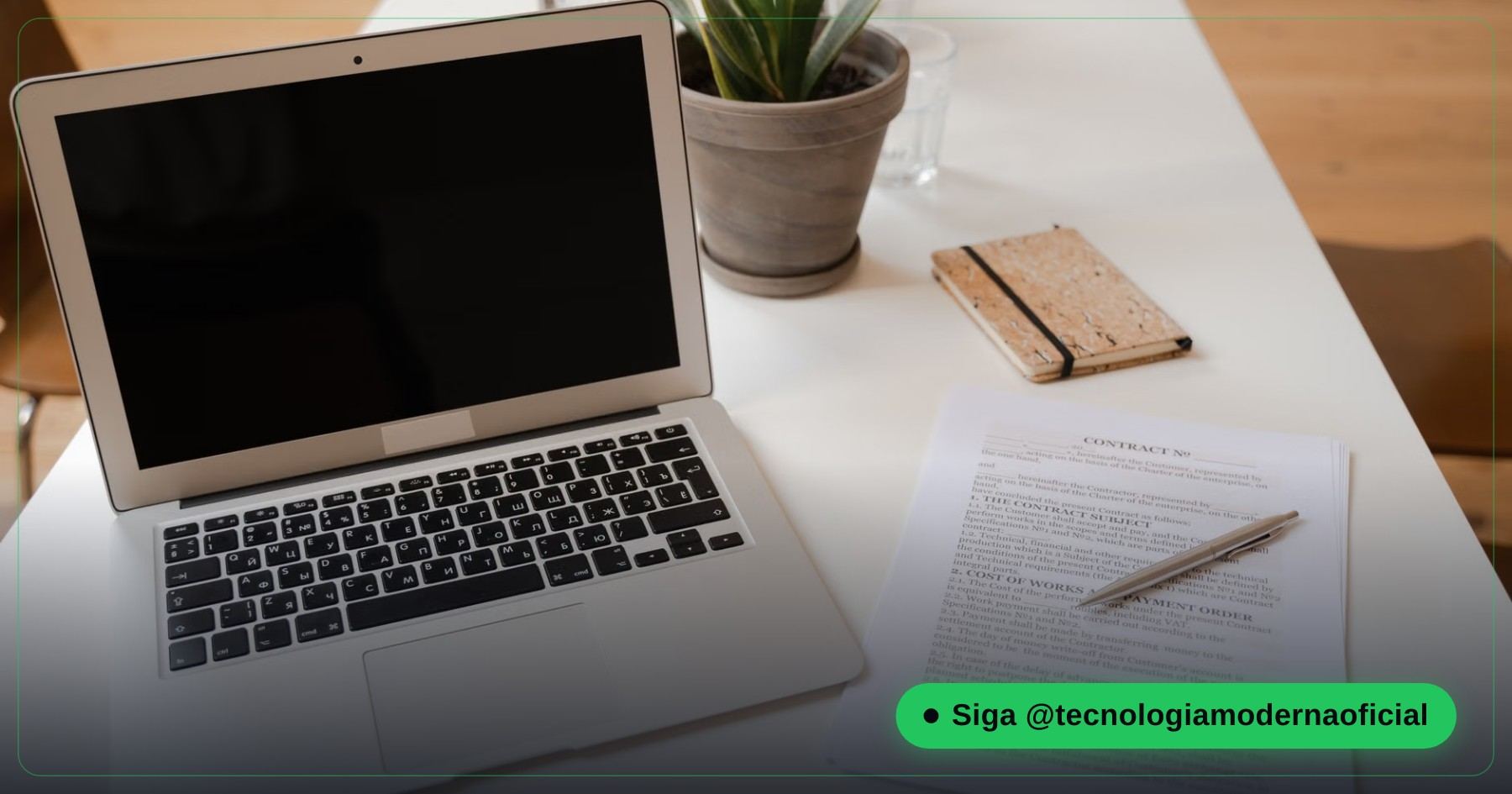
The right question isn’t “do I have state secrets?” but “would I mind if my personal documents leaked because my laptop was stolen tomorrow?”. Most of us answer yes — and that’s exactly who benefits from setting up a vault once and forgetting it exists.
⚠️ Essential Care for Your Vault
- Never forget the password: no recovery exists — by design.
- Dismount when you finish: leaving the vault mounted while you step away cancels the protection.
- Cloud sync: only let OneDrive or Google Drive sync the container while it’s dismounted, to avoid conflicts and corruption.
- Store the password in a manager, never in plain text: a “passwords.txt” on the desktop undoes all the effort.
- Back up the container itself: encryption protects against access, not against disk failure — see Windows backup without installing anything.
- Full-disk encryption is a separate layer: Windows’ own BitLocker protects the whole system drive — see where to find your BitLocker recovery key.
FAQ
What happens if I forget my VeraCrypt password?
The data is lost permanently. There’s no recovery, backdoor or support that can reverse it — that’s how strong encryption has to work to be trustworthy.
Is VeraCrypt really free?
Yes. It’s free and open-source software, and its code has been publicly audited.
Is cascade encryption (AES-Twofish-Serpent) worth it?
Only if you want the maximum possible margin. For everyday use, AES-256 alone is extremely secure — the cascade just makes the vault slower.
Can I keep a VeraCrypt container on Google Drive or OneDrive?
Yes, but always dismount the volume before letting the cloud service sync the file, to avoid sync conflicts and container corruption.
What’s the recommended minimum password length?
At least 24 characters mixing upper and lower case, numbers and symbols — generated by a trusted tool and stored in a password manager.
Do I need to be an IT professional to use VeraCrypt day to day?
No. Once the vault is created, using it is as simple as typing a password to mount it (it appears as a normal drive in Windows) and dismounting when you finish.
🎮 How much did you learn?
Once you pick an answer it locks in — reload the page to try again.
1. Why should you download VeraCrypt from the official site?
2. Why doesn’t a hidden-attribute folder protect your files?
3. What is the recommended minimum password length in the article?
4. What is the AES(Twofish(Serpent)) cascade?
5. Can you recover the data if you forget the vault password?
Esse conteúdo ajudou você?
Compartilha com alguém que também vai curtir — é rapidinho e ajuda muito o nosso trabalho a chegar em mais gente.
Conhecimento só tem valor quando compartilhado.
Manter essa estrutura de laboratórios funcionando e produzir conteúdos de engenharia de forma totalmente gratuita e acessível exige tempo e dedicação diária à bancada. Esse guia salvou os seus arquivos? Você pode contribuir diretamente para manter o nosso trabalho independente forte. Apoie doando qualquer valor!
Quer apoiar a nossa bancada independente?
[email protected]